

Troubleshooting Guide
Step-by-step help for the most common problems with Lampsy® and its app. Pick a topic, then open the guide that matches what you see.
Power, setup and Wi-Fi
Guide 1: Lampsy® won’t turn on
The problem: Lampsy® appears unresponsive. You cannot see a status light, hear any sounds, or reach the device in the app. The lamp light being dark does not necessarily mean Lampsy® is switched off.
What to do
- Check that Lampsy®’s power connection is secure.
- Check that the wall socket is switched on.
- Test the socket with another appliance.
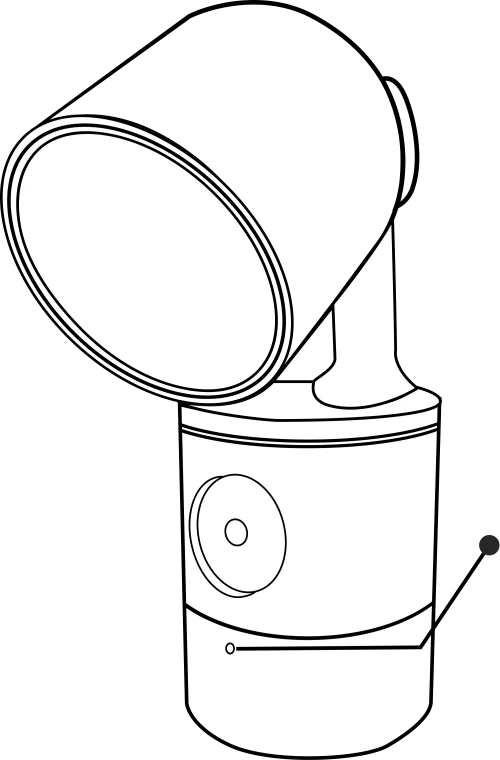
- Look for the small status light. Changing red, green, and blue lights mean Lampsy® is turning on.
- If the device remains unresponsive, contact support. If you see repeating purple flashes, include a video of the pattern.
Related guides: What do Lampsy®’s coloured lights and flashing patterns mean?; Contacting Lampsy® support: what information to provide
Guide 2: My phone can’t find Lampsy® during Bluetooth setup
The problem: You are trying to set up Lampsy®, but your phone cannot find or connect to it.
What to do
- Turn on Bluetooth on your phone.
- Keep your phone close to Lampsy®.
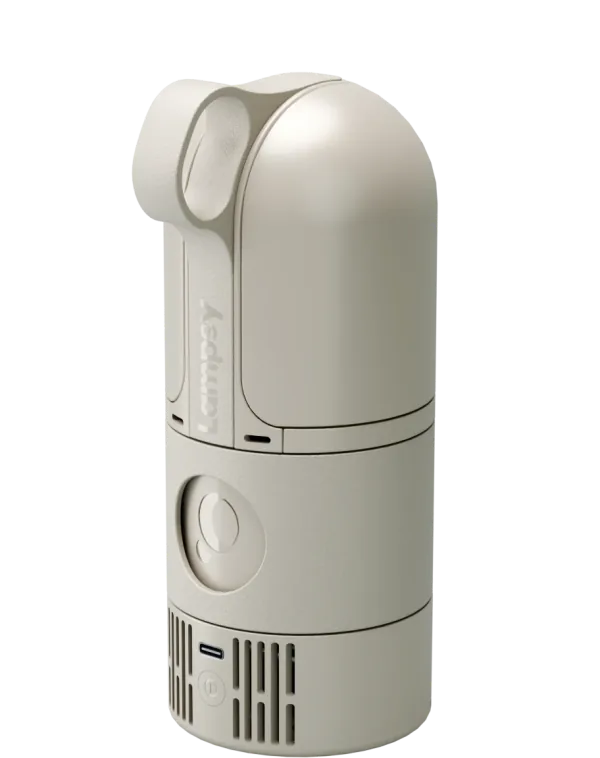
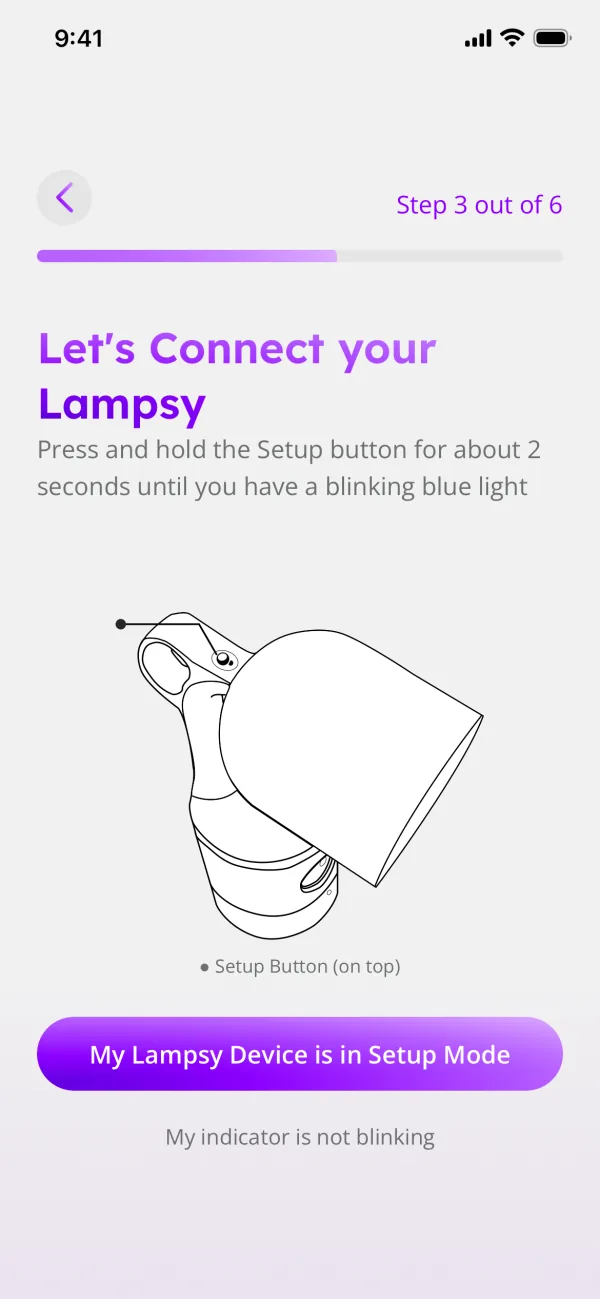
- Hold Lampsy®’s setup button for about 2 seconds, then release it.
- Check for a flashing blue status light. This means Lampsy® is waiting for a setup connection.
- Return to the setup process in the Lampsy® app. Your Lampsy® device should appear after scanning.
- Select your Lampsy® device and confirm pairing. Some phones ask you to confirm twice; accept both times.
- A steady blue status light means the phone has connected.
- If Lampsy® remains undiscoverable, contact support.
Setup closes after about 10 minutes. Enter setup mode again if the flashing blue light has stopped.
Related guides: Lampsy® won’t connect to my Wi-Fi; The touch buttons aren’t responding or do something unexpected
Guide 3: Lampsy® won’t scan my Wi-Fi QR code
The problem: You are showing a Wi-Fi QR code to Lampsy®, but it does not seem to read it or begin connecting.
What to do
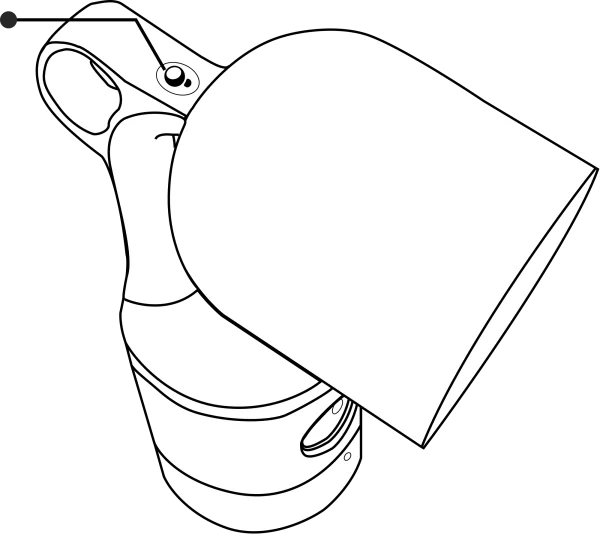
- Hold the setup button for about 2 seconds, then release it.
- Check for a flashing blue status light. This means Lampsy® is waiting for a setup connection.
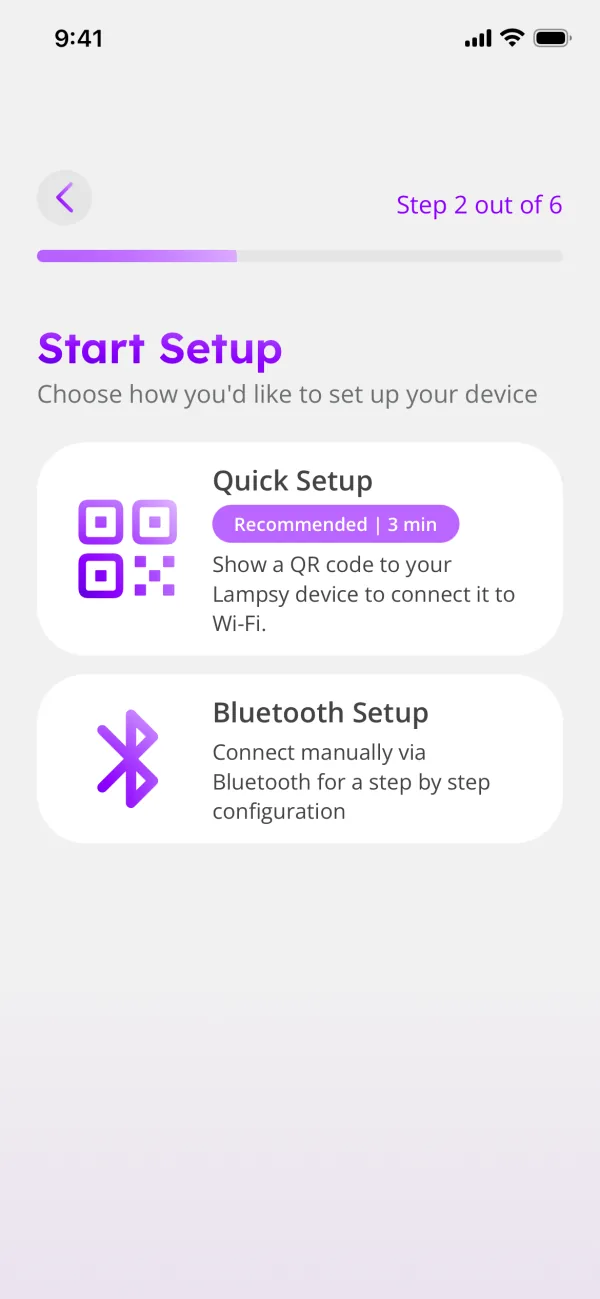
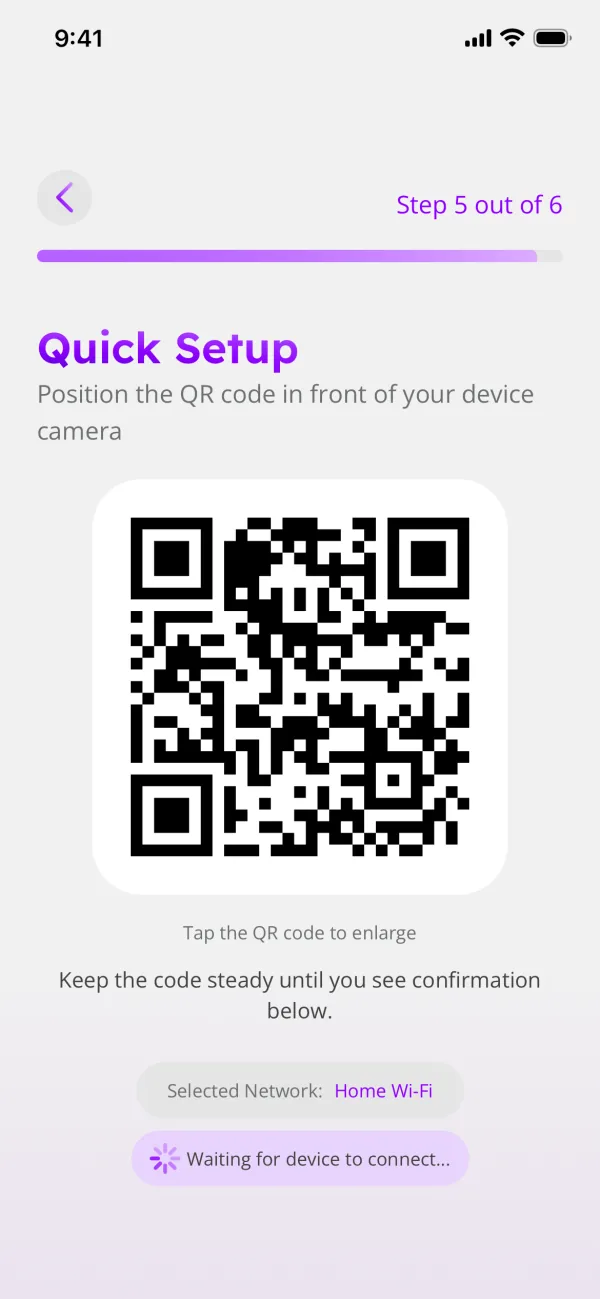
- Show the Wi-Fi setup code to the camera, keeping the whole code visible.
- Hold it steady. Adjust the distance or screen brightness if needed, and avoid light shining directly on the phone screen so that the entire code is readable.
- Listen for a short beep, which means Lampsy® has read the code.
- When the blue light gently brightens and dims, let the connection attempt finish, before showing another code if the connection is unsuccessful.
- If scanning continues to fail, use the app’s Bluetooth setup process or contact support.
The beep confirms that the code was read, not that Wi-Fi connected successfully.
Related guides: Lampsy® won’t connect to my Wi-Fi; What do Lampsy®’s coloured lights and flashing patterns mean?
Guide 4: Lampsy® won’t connect to my Wi-Fi
The problem: Lampsy® reads your Wi-Fi details but fails to connect, or setup reports that the connection failed.
What to do
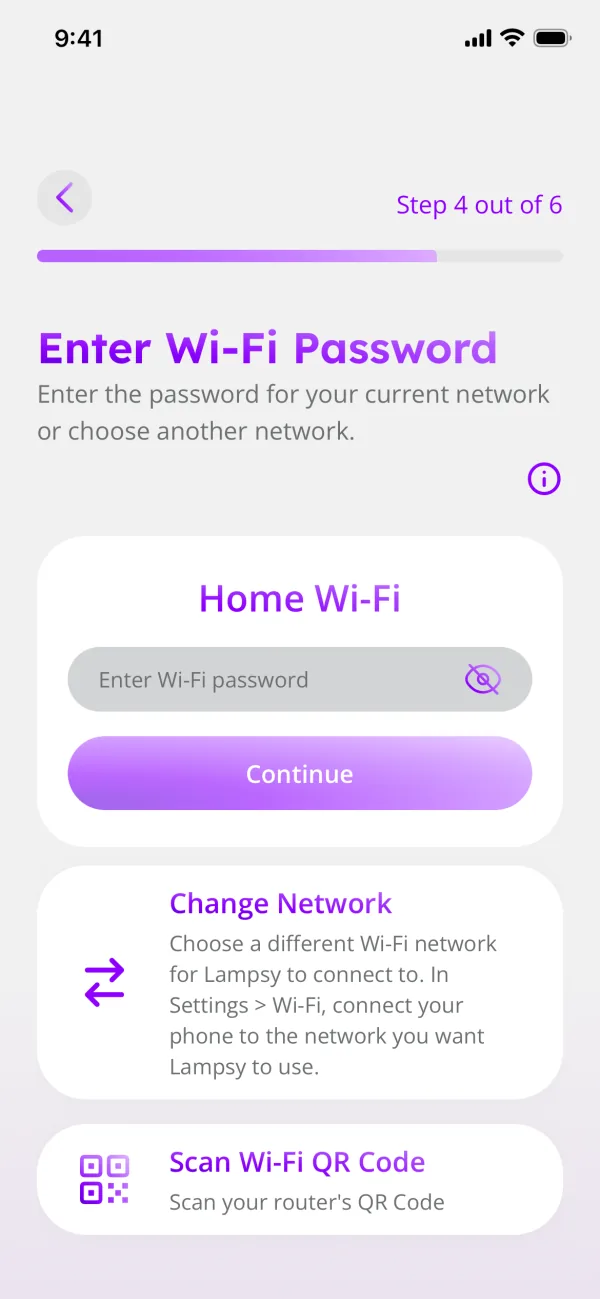
- Check the network name and password carefully.
- Confirm that another device can connect to the same network.
- Enter Lampsy®’s setup mode by holding the setup button for about 2 seconds.
- Check for a flashing blue status light. This means Lampsy® is waiting for a setup connection.
- Submit the Wi-Fi details again.
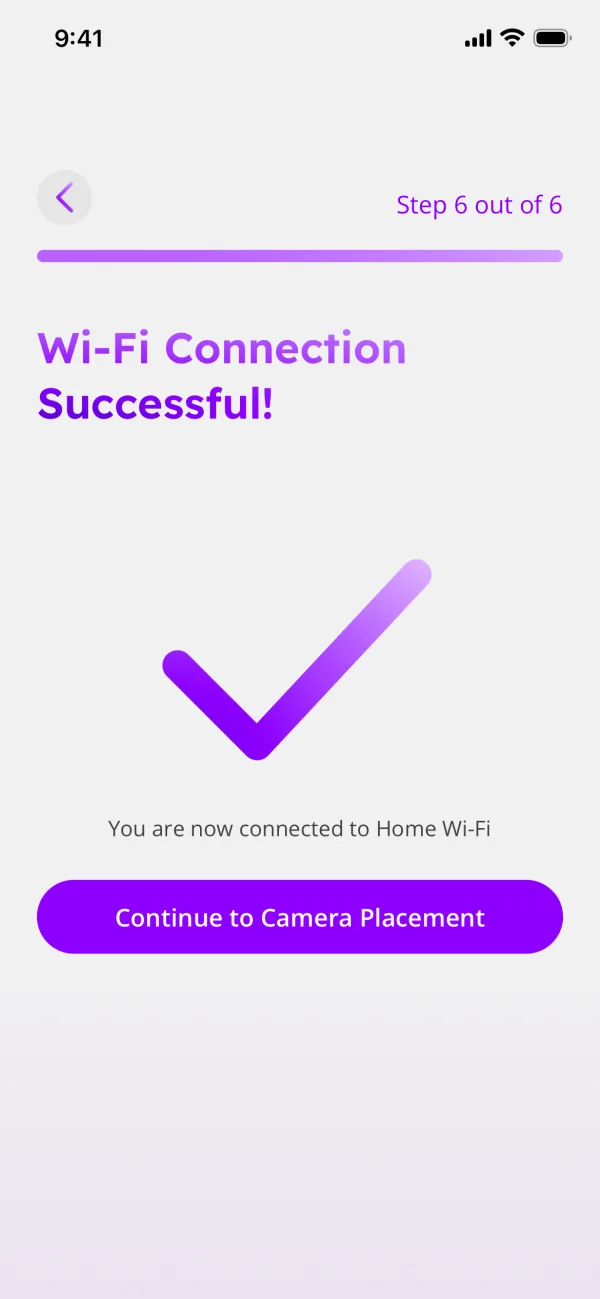
- Let the connection attempt finish while the blue light gently brightens and dims.
- If correct details repeatedly fail, contact support with the setup message.
A steady green light confirms connection to the Lampsy® service. Do not send your Wi-Fi password to support.
Related guides: My phone can’t find Lampsy® during Bluetooth setup; Lampsy® appears offline even though my Wi-Fi is working
Guide 5: Connecting Lampsy® after changing my router or Wi-Fi password
The problem: Lampsy® stopped connecting after you replaced your router or changed your Wi-Fi name or password.
What to do
- Have the new network name and password ready.
- Open the app and go to the Device tab.
- Hold Lampsy®’s setup button for about 2 seconds, then release it.
- Check for a flashing blue status light. This means Lampsy® is waiting for a setup connection.
- Select your Lampsy® and tap Repeat Setup.
- Provide the new details through the app’s setup process (Bluetooth or Wi-Fi QR code).
- Let the connection attempt finish.
- Check for a steady green status light and confirm that the app can reach Lampsy®.
- If it cannot connect, follow guide 4.
A factory reset is not required to change Wi-Fi details.
Related guides: Lampsy® won’t connect to my Wi-Fi; Lampsy® won’t scan my Wi-Fi QR code
Guide 6: Lampsy® keeps disconnecting
The problem: Lampsy® connects successfully but repeatedly goes offline or loses its connection.
What to do
- Check whether other devices also lose their connection.
- If possible, bring the router closer to Lampsy® or reduce obstacles between them.
- Hold Lampsy®’s setup button for about five seconds, then release it, to retry the saved Wi-Fi connection.
- Watch for the blue connecting light.
- Check whether the light returns to steady green.
- If disconnections continue, contact support with the times they occur.
If the Wi-Fi password changed, enter the new details using guide 5 instead.
Related guides: Connecting Lampsy® after changing my router or Wi-Fi password; Lampsy® appears offline even though my Wi-Fi is working
Guide 7: Lampsy® appears offline even though my Wi-Fi is working
The problem: Your home Wi-Fi seems to work, but the app shows Lampsy® as offline or cannot reach it.
What to do
- Check Lampsy®’s status light.
- If it flashes green, use another device on the same Wi-Fi to check internet access.
- If internet access works, hold Lampsy®’s setup button for about five seconds to retry its saved connection.
- Check whether the light becomes steady green.
- If the light is steady green but the app still shows offline, force close the app in your phone’s settings and reopen it.
- If the problem continues, contact support.
Connecting to Wi-Fi and connecting to the Lampsy® cloud service are separate stages.
Related guides: Lampsy® keeps disconnecting; Lampsy® says connectivity or setup may be affected
Guide 8: Lampsy® says connectivity or setup may be affected
The problem: You received a notification saying that device connectivity, setup, or other connected features may be affected.
What to do
- Read the latest notification.
- If it says Lampsy® is attempting to recover, leave the device powered.
- Check whether another device can use your home internet.
- If the notification asks you to contact support, send support the message.
- After a recovery notification reporting that Lampsy® is back to normal, check that the app can reach Lampsy® again.
If Lampsy® remains unreachable, contact support even if no follow-up notification arrives. Connection problems can prevent further messages from reaching you.
Related guides: Lampsy® appears offline even though my Wi-Fi is working; Contacting Lampsy® support: what information to provide
Lights, sounds and buttons
Guide 9: What do Lampsy®’s coloured lights and flashing patterns mean?
The problem: Lampsy®’s small status light has changed colour or is flashing, and you are unsure what it means.
What to do
- Observe the small status light rather than the lamp light.
- Match its pattern to the table below.
- Follow the related guide for connection or fault problems.
- For repeating purple flashes, record a video and contact support.
| Pattern | Meaning |
|---|---|
| Changing red, green, and blue with steady white intervals | Turning on. |
| Flashing blue | Waiting for a setup connection. |
| Steady blue | Phone connected for setup. |
| Blue gently brightening and dimming | Attempting a Wi-Fi connection. |
| Steady green | Connected to the Lampsy® cloud service. |
| Flashing green | Not connected to the Lampsy® cloud service. |
| Red flashes between other patterns | Lampsy® is experiencing some error. |
| Steady red | Shutting down. |
| Repeating purple flashes | Startup failure requiring support. |
Steady green confirms the service connection, not the health of every feature.
Related guides: Lampsy® keeps beeping or flashing red or purple; Lampsy® won’t turn on
Guide 10: Lampsy® keeps beeping or flashing red or purple
The problem: Lampsy® makes repeated sounds every 15 minutes, shows red flashes between its usual status lights or repeating purple flashes.
What to do
- Check the latest device notification in the app.
- If recovery is underway, leave Lampsy® powered on, even if it seems to be shutting down.
- If the message asks you to contact support, send support the notification.
- If there is no notification, and you see repeating purple flashes, record a video of the pattern and contact support.
Some faults produce a reminder beep about every 15 minutes. Detections, setup, and shutdown also produce sounds, so a beep alone does not identify the cause. Here are the other situations that might produce an isolated beep or beep pattern:
- Lampsy® beeps with a specific pattern when it detects abnormal movement but is unable to send out an automated emergency call or notification due to connectivity issues.
- Lampsy® beeps once when it reads a Wi-Fi QR code during setup.
- Lampsy® beeps once when the power button is pressed and, if it is held for more than 3 seconds, beeps twice before it starts to shut down.
Related guides: What do Lampsy®’s coloured lights and flashing patterns mean?; Contacting Lampsy® support: what information to provide
Guide 11: The lamp won’t turn on or change brightness or colour
The problem: Lampsy® is running, but the lamp light stays dark or does not respond to lighting changes.
What to do
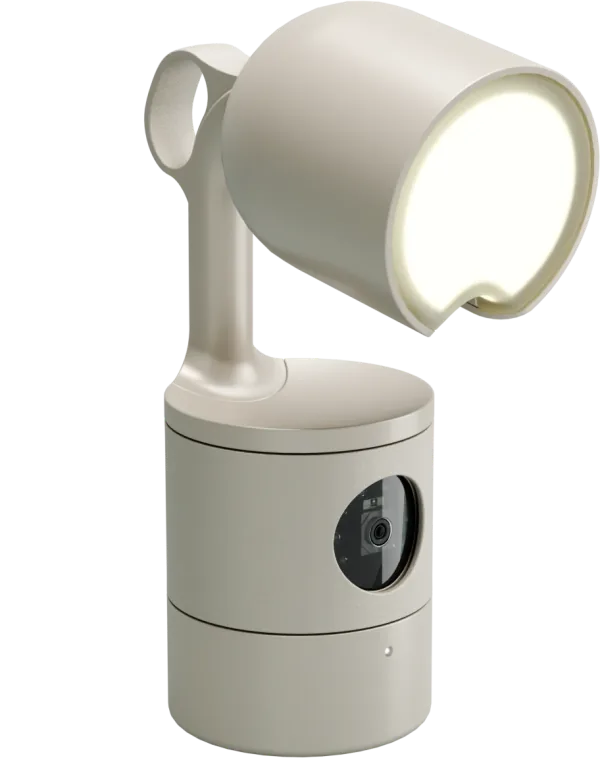
- Put Lampsy® in its open position.
- Briefly tap the setup button once to switch the lamp on.
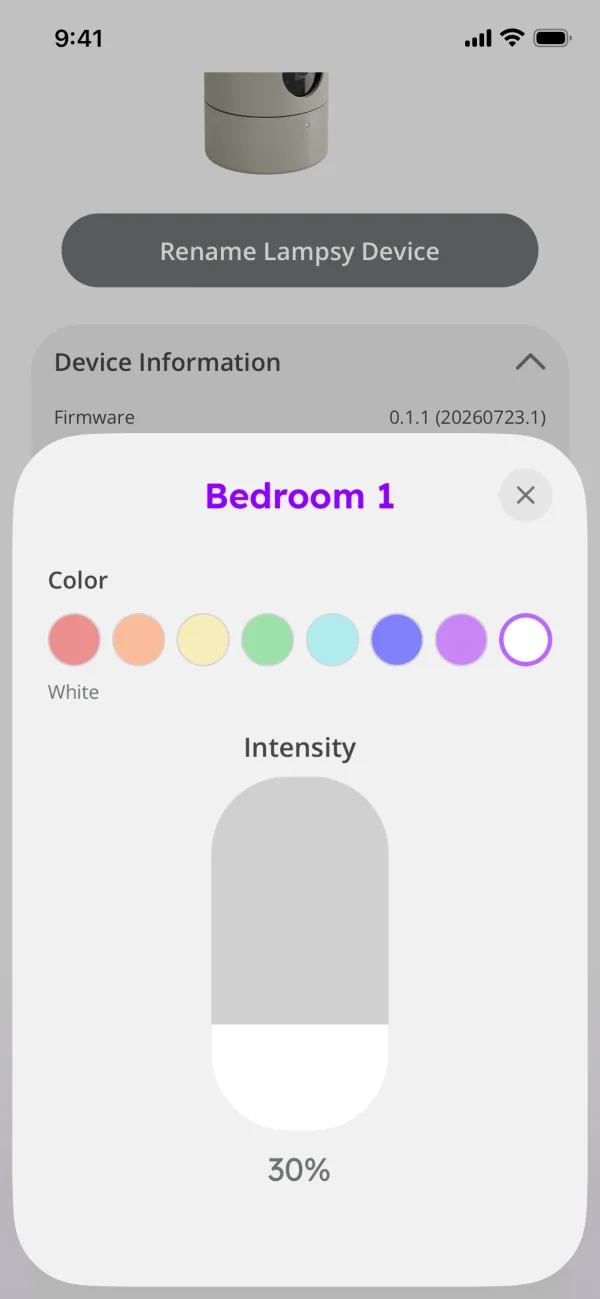
- If using app controls, check that brightness is above zero and the lamp is not set to off.
- Try white at a clearly visible brightness.
- If the button works but app changes do not, check the device connection.
- If the lamp still does not respond, contact support.
Related guides: The lamp doesn’t respond when I open or close it; The touch buttons aren’t responding or do something unexpected
Guide 12: The lamp doesn’t respond when I open or close it
The problem: The lamp stays on when Lampsy® is closed, or remains dark when opened.
What to do
- Open Lampsy®.
- Briefly tap the setup button to switch the lamp on.
- Check that brightness is above zero and the lamp is not set to off.
- Close and open Lampsy® once, checking the lamp after each movement.
- If it does not respond correctly, contact support and say whether the button still controls it.
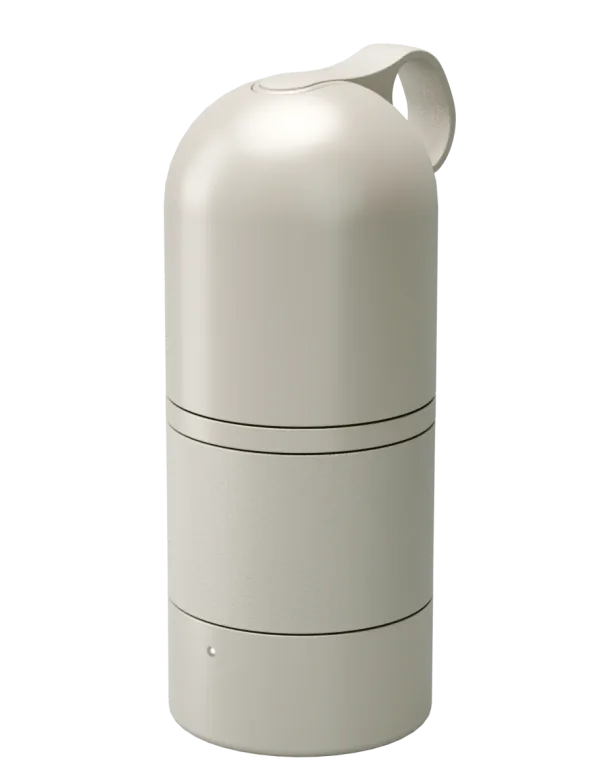
Closing Lampsy® should turn the lamp light off, but does not override the lamp’s on/off setting, so, if it was set to on, opening Lampsy® should turn the lamp light back on again automatically.
Related guides: The lamp won’t turn on or change brightness or colour; Lampsy® says night mode and device controls may be disabled
Guide 13: The touch buttons aren’t responding or do something unexpected
The problem: A button appears unresponsive, or a press changes something other than what you intended.
What to do
- Choose the action from the table below.
- Press the appropriate button for the indicated time.
- Release it fully before trying again.
- Avoid rapid repeated touches.
- If normal presses still fail, contact support with the button used and how long you held it.
| Action | Result |
|---|---|
| Brief setup-button tap | Lamp on/off. |
| Setup-button hold of about 2 seconds | Enter/leave setup mode. |
| Setup-button hold of about five seconds | Retry saved Wi-Fi connection. |
| Power-button hold of about three seconds | Shut down (initially pressing should cause Lampsy® to beep once, and then beep twice when Lampsy® begins shutting down). |
Related guides: The lamp won’t turn on or change brightness or colour; How to shut down or restart Lampsy®
Guide 14: Lampsy® says local alarms are disabled
The problem: You received a notification saying there is a buzzer issue and local alarms are disabled. Lampsy®’s audible alarms may be unavailable.
What to do
- Contact support with the notification.
- Keep Lampsy® powered so it can continue checking for recovery.
- Look for a later message saying local alarms are re-enabled.
- If expected sounds remain missing afterwards, update support.
This message concerns the device’s sound output. It does not establish whether phone notifications are working.
Related guides: Lampsy® sounded an alert, but nothing has appeared in the app; Contacting Lampsy® support: what information to provide
Guide 15: Lampsy® says night mode and device controls may be disabled
The problem: You received a notification about night mode or device interfaces. Buttons, lighting, sounds, or night viewing may behave unexpectedly.
What to do
- Read whether recovery is underway or support is requested.
- Leave Lampsy® powered while it attempts recovery, even if it seems to be shutting down.
- Note which controls or features are affected.
- If support is requested, send the notification and what you noticed about Lampsy®’s behaviour.
- After recovery, check the lamp button and camera visibility during nighttime again.
Avoid repeatedly pressing an unresponsive button.
Related guides: The touch buttons aren’t responding or do something unexpected; The picture is too dark at night
Live video and camera
Guide 16: I can’t see the live video
The problem: The live view is blank, unavailable, or fails to open.
What to do
- Check that Lampsy® is reachable in the app.
- Check for a camera or streaming fault notification.
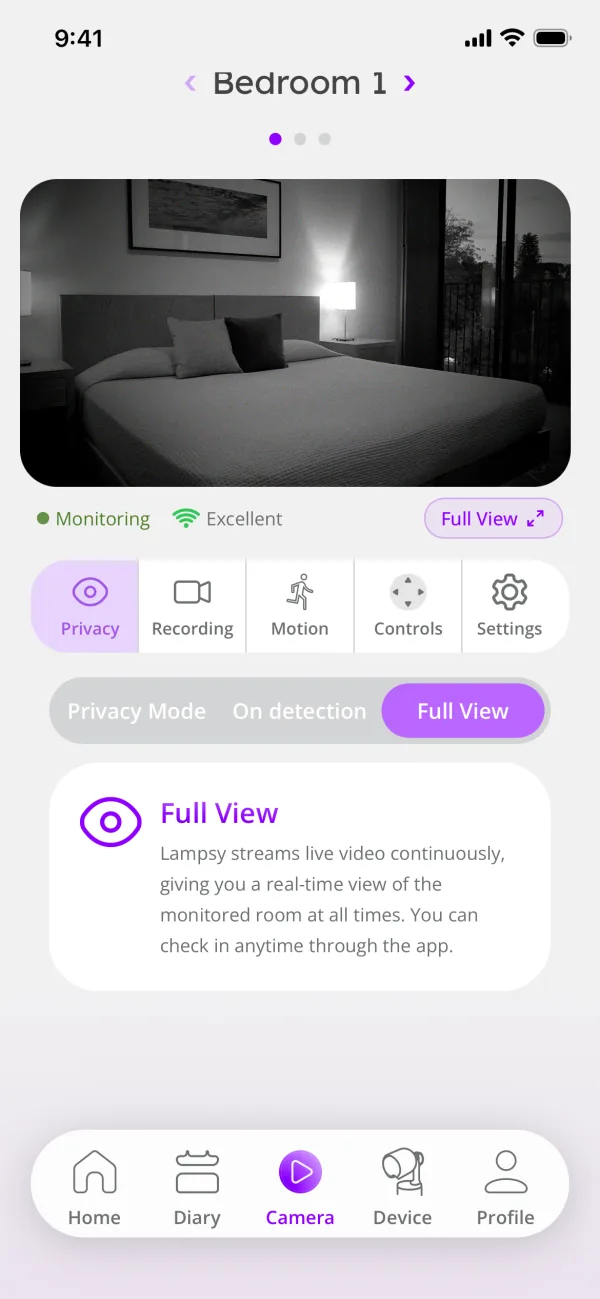
- Check the Privacy setting in the Camera tab.
- If it is set to Privacy Mode, live video is off. Choose another option if you want live viewing.
- If it is set to On Detection, live video is only available around detected events. Choose Full View to watch at any time, if that matches your preference.
- Close and reopen the live view.
- Contact support if it still fails.
Note that recording and live streaming have separate settings, so recording might be enabled and streaming disabled, and vice versa.
Related guides: Lampsy® appears offline even though my Wi-Fi is working; Lampsy® says there’s a camera issue and monitoring is disabled
Guide 17: Live video works at home but not when I’m away
The problem: You can view the Lampsy® stream at home, but cannot open the live video from another location.
What to do
- Check that Lampsy®’s home internet works and its status light is steady green.
- Check that your phone has internet access.
- Confirm that the Privacy setting in the Camera tab allows live video.
- Close and reopen the live view.
- If possible, try your phone on another internet connection.
- If viewing still fails, contact support and explain that it works at home but fails remotely.
Related guides: I can’t see the live video; Lampsy® appears offline even though my Wi-Fi is working
Guide 18: The video freezes, stutters, or keeps stopping
The problem: Live video becomes jerky, freezes, or closes while you are watching.
What to do
- Close and reopen the live view.
- Check the internet connections used by Lampsy® and your phone.
- Check for camera or device fault notifications.
- If viewing ends after about five minutes, open it again. Each viewing session has a five-minute limit.
- If it freezes earlier or repeatedly fails to reopen, contact support with the approximate timing.
Detection-only viewing can also stop when its viewing window ends.
Related guides: I can’t see the live video; Lampsy® says some features may be disabled
Guide 19: The picture is blurry
The problem: The live picture is visible, but the area you want to see is out of focus.
What to do
- Check that the camera’s view is unobstructed.
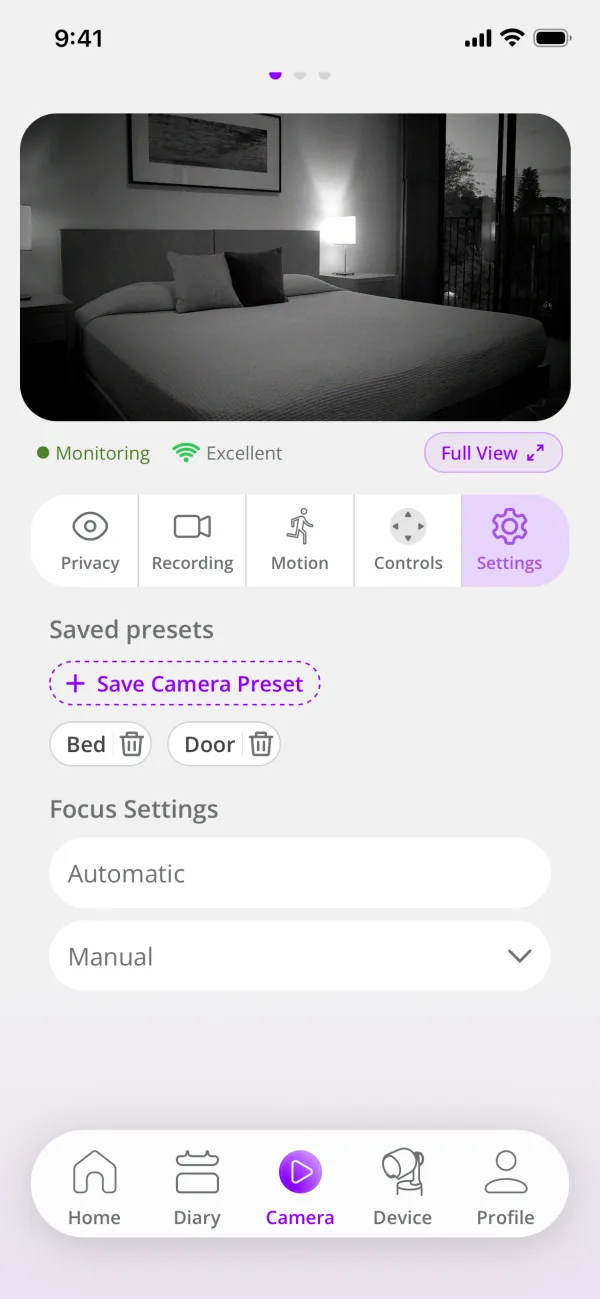
- In the Camera tab, open Settings and, under Focus Settings, choose Automatic, or choose Manual and adjust the focus yourself.
- Reducing the zoom can also improve the picture.
- If you use Saved presets, also under Settings, check whether applying one changes the focus.
- If the picture remains blurry, send support a screenshot.
If manual focus is used, make one adjustment at a time and check the result.
Related guides: The picture is too zoomed in/out or shows the wrong area; I can’t see the live video
Guide 20: The picture is too zoomed in/out or shows the wrong area
The problem: The camera picture cuts off the area you want to monitor or uses an unexpected saved preset.
What to do
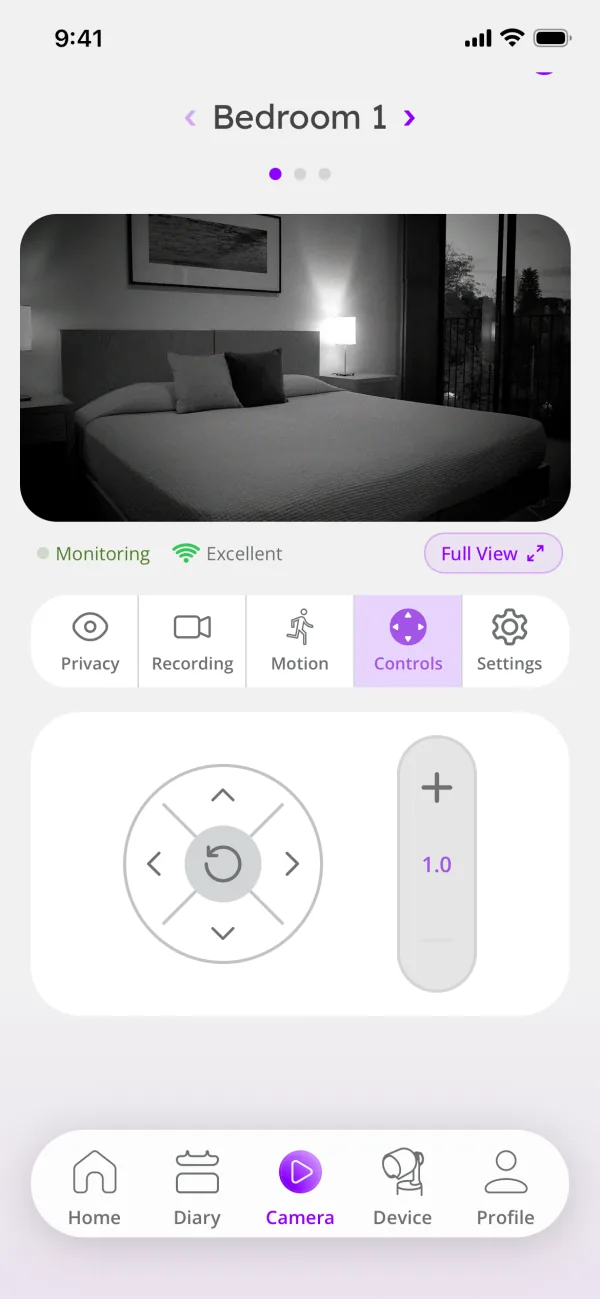
- In the Camera tab, open Controls and zoom in or out as needed.
- Use the direction controls in Controls until the area you want is visible.
- Check whether a saved preset, under Settings in the Camera tab, caused the change.
- Check the picture before saving a new preset.
- Contact support if adjustments are unavailable or do not take effect.
Setup temporarily changes the camera view to help read QR codes, and should return to the previous view by itself afterwards. If you move Lampsy®, you may need to adjust your saved presets for its new position.
Related guides: The picture is blurry; Lampsy® won’t scan my Wi-Fi QR code
Guide 21: The picture is too dark at night
The problem: The camera works in daylight, but the picture becomes too dark to see clearly at night.
What to do
- Check that the camera and night illumination area are unobstructed.
- Finish or leave setup mode if active.
- Allow the automatic night illumination time to respond after the room becomes dark.
- Check for a night-monitoring fault notification.
- If the picture stays dark, contact support with a screenshot and describe the room lighting.
Night illumination is automatic, but might require a few seconds under dark conditions to switch on.
Related guides: Lampsy® says night monitoring may be disabled; Lampsy® says night mode and device controls may be disabled
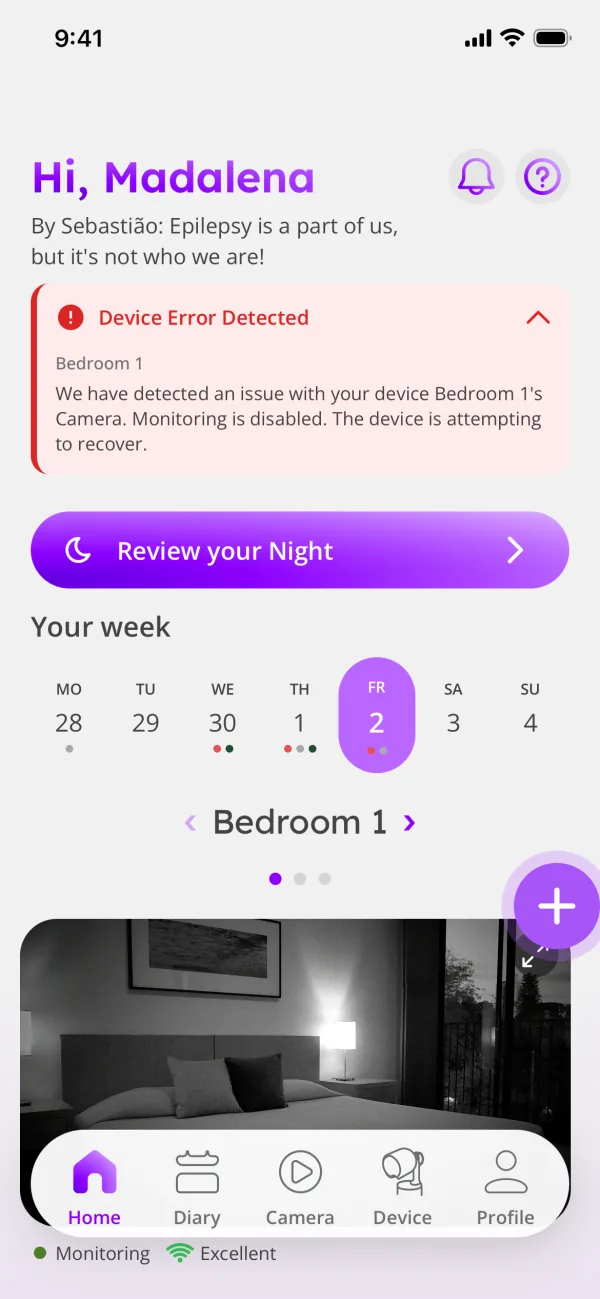
Guide 22: Lampsy® says there’s a camera issue and monitoring is disabled
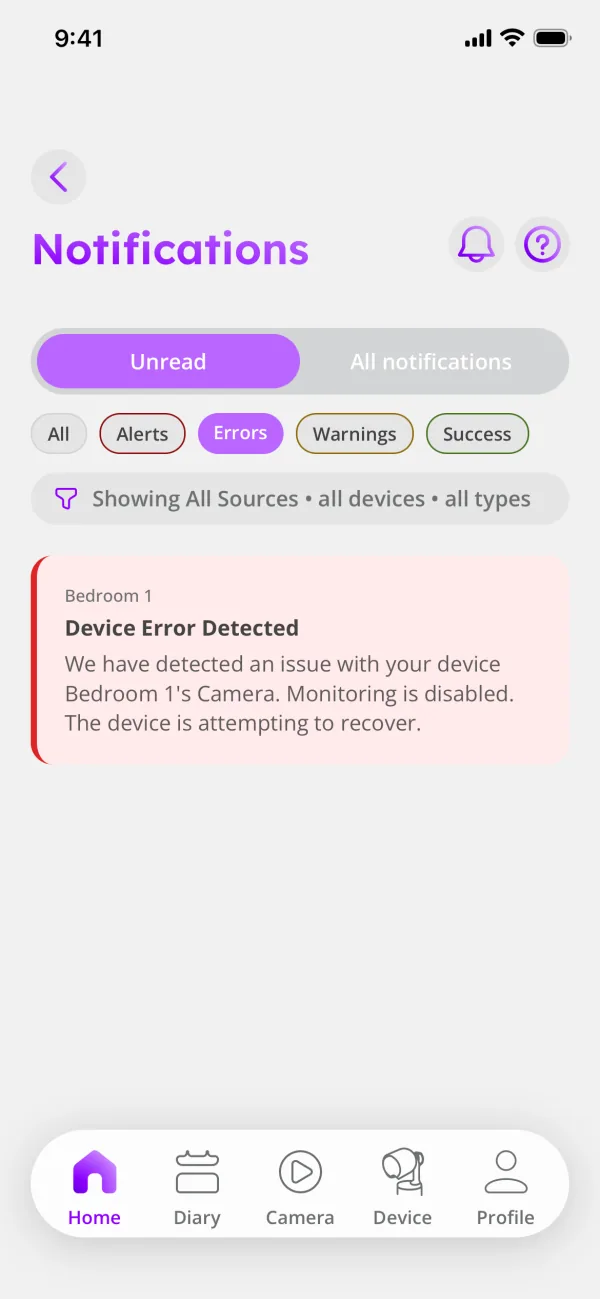
The problem: A notification reports a camera issue and says monitoring is disabled. This can happen even if Lampsy® remains connected.
What to do
- Read the latest notification.
- If recovery is underway, keep Lampsy® powered while it makes its recovery attempts, even if it seems to be shutting down.
- If the message asks you to contact support, send support the notification.
- After a recovery message, check whether live video is available.
- Report any continuing camera problem.
Monitoring is unavailable while the message says it is disabled, meaning the device will not be able to stream video, detect general motion or abnormal movement, or record videos. Changing privacy settings does not repair this fault.
Related guides: I can’t see the live video; Lampsy® says it’s back to normal, but I’m still having problems
Guide 23: Lampsy® says night monitoring may be disabled
The problem: A notification reports a problem affecting night monitoring. The daytime picture may still look normal.
What to do
- Contact support with the notification.
- Remove any obstruction covering the camera or night illumination area.
- Keep Lampsy® powered while it checks for recovery.
- After a recovery message, check the picture in the same dark-room conditions.
- Tell support if the picture remains dark.
A visible daytime picture does not confirm that night illumination has recovered. Night illumination is automatic, but might require a few seconds under dark conditions to switch on.
Related guides: The picture is too dark at night; Lampsy® says it’s back to normal, but I’m still having problems
Movement alerts
Guide 24: I’m not receiving motion notifications
The problem: You expect general movement notifications, but none arrive.
What to do
- Check that Lampsy® is connected and has no camera or detection fault.
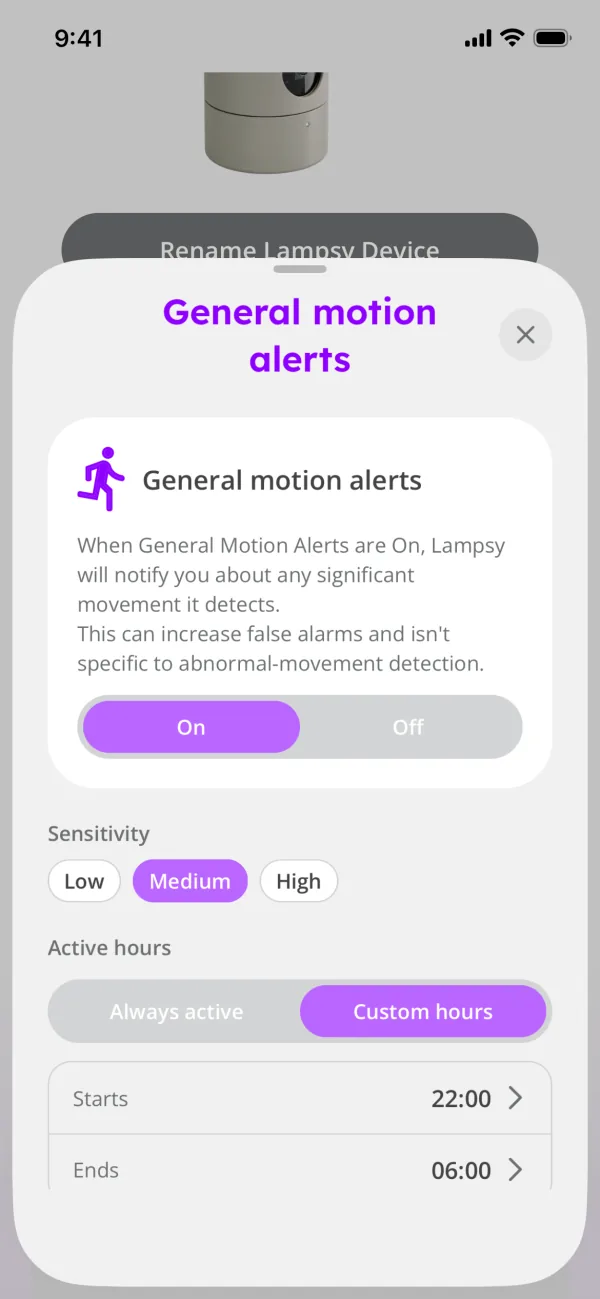
- Check that General motion alerts are on; they are off by default.
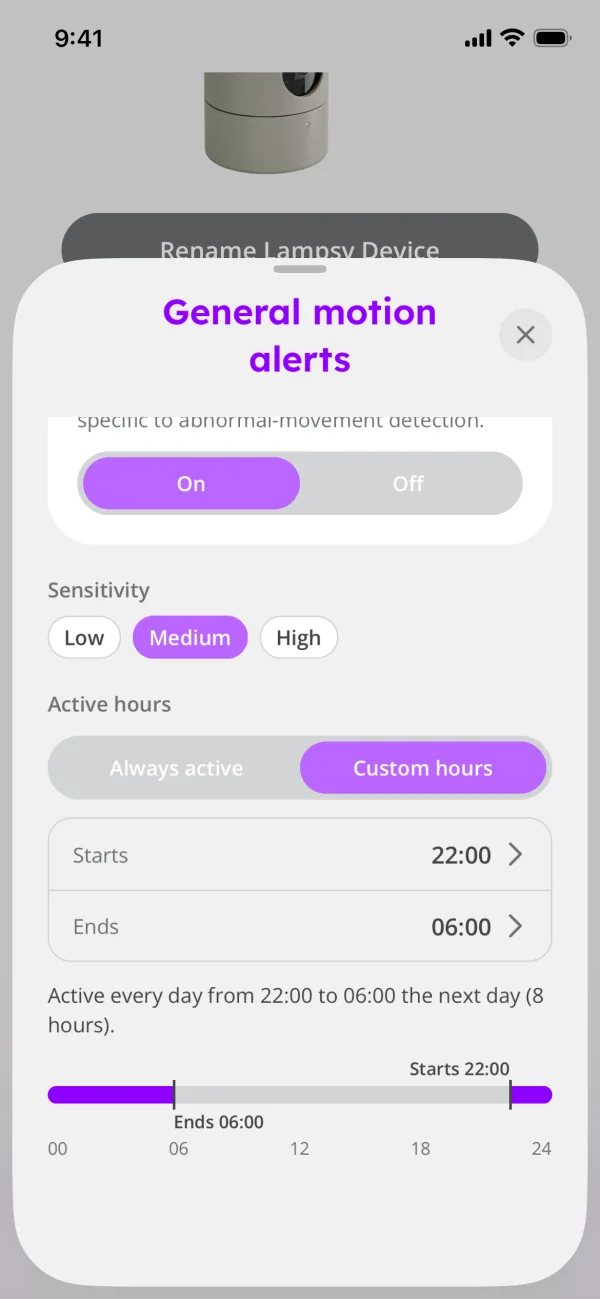
- Check that the current time falls within the Active hours (between Starts and Ends).
- Finish or leave setup mode, which temporarily pauses movement analysis.
- Check the Sensitivity. At a lower sensitivity, it takes larger movements to trigger a notification.
- Contact support if notifications remain missing, including an example time and your settings.
General motion sensitivity does not change abnormal movement detection. The default configuration looks for sustained movement and spaces general motion notifications 10 minutes apart. So after a notification, no other general motion notification is sent for 10 minutes, even if movement is detected.
Related guides: Monitoring happens at the wrong time; Lampsy® says abnormal and general movement detection may be disabled
Guide 25: I’m receiving too many motion notifications
The problem: General movement notifications arrive for activity outside the area or hours you want to monitor.
What to do
- Check that the live camera view covers the area you want to monitor.
- Adjust the framing if needed.
- Lower the Sensitivity in General motion alerts if it seems too high.
- Set the Active hours to the times you want to be notified.
- Observe the result before adjusting again.
- Contact support if notifications remain excessive.
General motion sensitivity does not change abnormal movement detection. The default configuration looks for sustained movement and spaces general motion notifications 10 minutes apart. So after a notification, no other general motion notification is sent for 10 minutes, even if movement is detected.
Related guides: The picture is too zoomed in/out or shows the wrong area; Monitoring happens at the wrong time
Guide 26: Lampsy® sounded an alert, but nothing has appeared in the app
The problem: You heard Lampsy® make a sound, but cannot find a matching notification or event.
What to do
- Note the time and sound pattern.
- Check whether it happened during setup, a button press, or shutdown. These actions also produce sounds.
- Check Lampsy®’s connection and fault notifications.
- Reopen the relevant device or event screen.
- If you believe it was an abnormal movement alarm and no event appears, contact support with the time.
A device sound alone does not confirm delivery of a phone notification. If Lampsy® detects abnormal movement while it has a connection problem, it may sound a beep pattern instead, because it cannot send a phone notification or an automated emergency call at that moment. The event, and its video if recording is on, may then only appear later in the Diary tab, once the connection is restored.
Related guides: Lampsy® keeps beeping or flashing red or purple; Lampsy® appears offline even though my Wi-Fi is working
Guide 27: Lampsy® says abnormal movement alerts are disabled
The problem: You received a notification saying abnormal movement detection has an issue and alerts are disabled.
What to do
- Leave Lampsy® powered if it is attempting recovery, even if it seems to be shutting down.
- Check for a follow-up notification.
- If support is requested, send the notification to support.
- After recovery, check that the app no longer reports the problem.
- Report any continuing disabled-alert message.
Abnormal movement alerts are unavailable while this fault is active. General motion detection may still work, but changing its settings won’t resolve the issue, and working live video does not confirm that detection has recovered.
Related guides: Lampsy® says abnormal and general movement detection may be disabled; Lampsy® says it’s back to normal, but I’m still having problems
Guide 28: Lampsy® says abnormal and general movement detection may be disabled
The problem: A notification says both movement-detection features may be affected. Live video may still work.
What to do
- Read whether recovery is underway or support is requested.
- Keep Lampsy® powered during recovery, even if it seems to be shutting down.
- If requested, contact support with the notification and its time.
- After recovery, check that the app no longer reports the detection fault.
- Tell support if the problem persists.
Related guides: Lampsy® says abnormal movement alerts are disabled; I’m not receiving motion notifications
Recordings
Guide 29: An event has no video recording
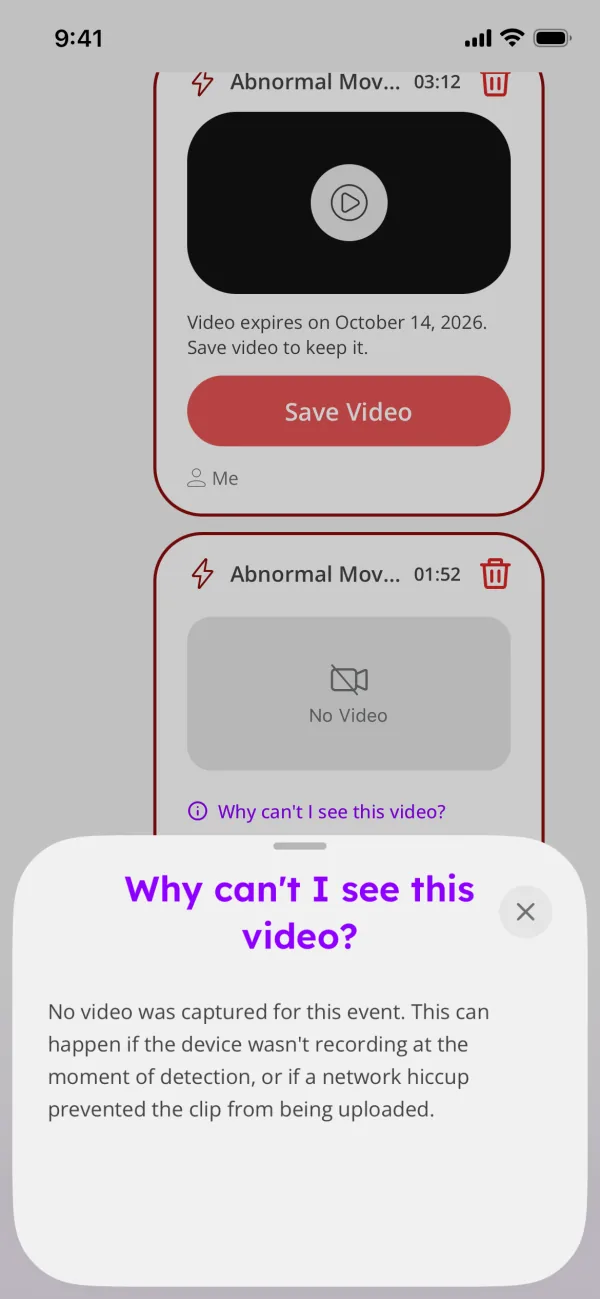
The problem: An event appears in the app, but there is no accompanying video clip.
What to do
- Check whether recording was enabled when the event happened.
- Check for camera, recording, storage, or streaming error notifications from around that time.
- Note whether Lampsy® lost power during the event.
- Note whether Lampsy® has recorded other events during that day and how many.
- If it was offline, restore its connection and check again later.
- If the clip remains missing, contact support with the event time.
Switching recording on afterwards cannot recreate footage from when it was off.
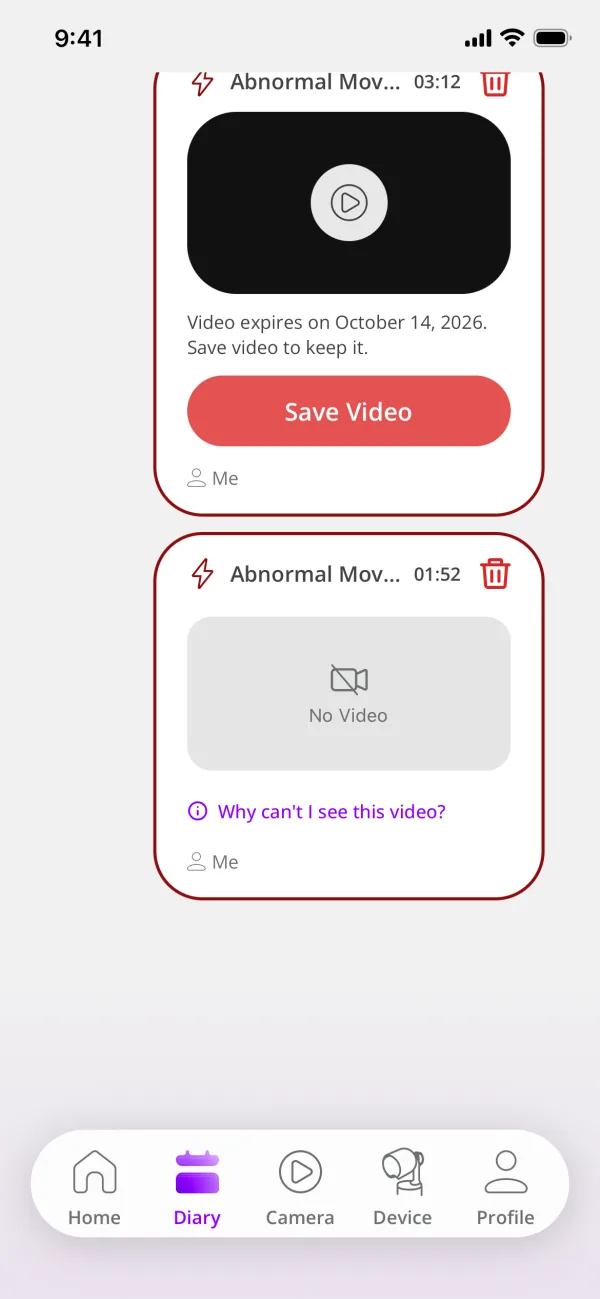
Lampsy® also limits the number of abnormal movement recordings per day. If there were repeated events on the same day, later events may have no video because the limit was reached. To record events again that day, delete recordings from the same day if you can, or wait for the limit to reset the next day.
Related guides: My recordings are delayed or missing; Lampsy® says video recording is disabled
Guide 30: My recordings are delayed or missing
The problem: Expected clips have not appeared, or recordings arrive much later than their events.
What to do
- Check Lampsy®’s internet connection and look for a steady green status light.
- Leave it powered and connected so pending video uploads can be retried.
- Check for recording or storage fault notifications.
- Reopen the recording list after connectivity returns.
- Contact support with the event times if clips remain missing.
The time it takes to upload a video recording varies depending on the quality of Lampsy®’s Wi-Fi connection. Some interrupted recordings may be incomplete or unusable.
Lampsy® also limits the number of abnormal movement recordings per day. If there were repeated events on the same day, later events may have no video because the limit was reached. To record events again that day, delete recordings from the same day if you can, or wait for the limit to reset the next day.
Related guides: Lampsy® appears offline even though my Wi-Fi is working; An event has no video recording
Guide 31: Lampsy® says video recording is disabled
The problem: A notification says Lampsy® cannot record video. Events during the fault may have no clips.
What to do
- Contact support as requested.
- Include the exact notification and when it appeared.
- Check Lampsy®’s internet connection, since pending uploads can contribute to in-device storage pressure.
- Keep Lampsy® powered for recovery checks, even if it seems to be shutting down.
- After recovery, confirm that recording remains enabled in your settings.
Do not reset Lampsy® or delete app recordings as a remedy unless support directs you.
Related guides: My recordings are delayed or missing; Contacting Lampsy® support: what information to provide
Guide 32: Lampsy® says video recording may be compromised
The problem: Lampsy® reports difficulty saving video. Recordings may be missing, incomplete, or cut short.
What to do
- Contact support with the notification.
- Note the times of affected recordings.
- Keep Lampsy® powered while it checks for recovery, even if it seems to be shutting down.
- After a recovery message, check subsequent recordings.
- Update support if the problem continues.
Changing focus, brightness, or live-view settings does not resolve a problem saving footage. This issue is more related to in-device storage issues, which could potentially affect other device features.
Related guides: Lampsy® says video recording is disabled; Lampsy® says it’s back to normal, but I’m still having problems
Guide 33: Lampsy® says video streaming and recording may be disabled
The problem: A notification says the device’s video streaming and recording functions may be affected.
What to do
- Leave Lampsy® powered if it is attempting recovery, even if it seems to be shutting down.
- Avoid repeatedly opening live video during that attempt.
- Contact support if requested by the notification.
- After recovery, reopen live video.
- Check subsequent recordings and report any continuing failure.
Recovery does not guarantee that footage missed during the fault can be recovered.
Related guides: I can’t see the live video; My recordings are delayed or missing
Review your Night
Guide 34: My night review hasn’t appeared
The problem: You expected a night review, but the completed night is missing from the app.
What to do
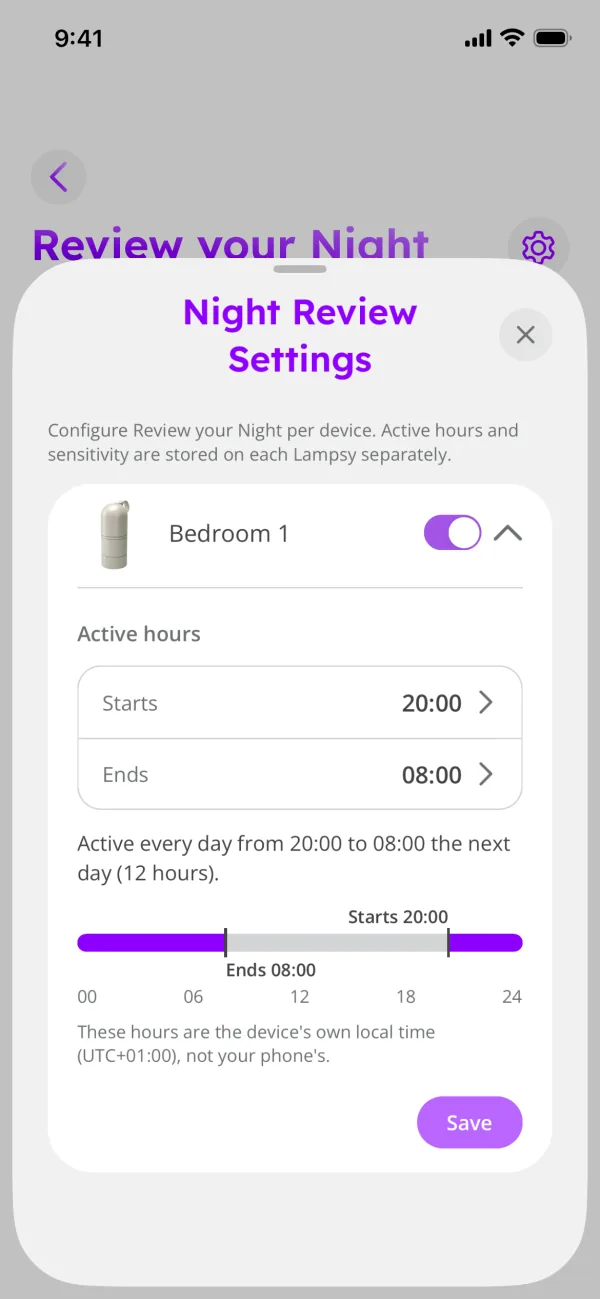
- Check that Review your Night is on in Night Review Settings; it is off by default.
- Check its hours in Night Review Settings.
- Confirm that your account has access to the feature, contacting support if unclear.
- Allow the scheduled session to finish.
- Check connectivity and any camera or detection faults.
- Contact support if the completed review remains missing after the connection returns.
Keep Lampsy® connected when possible. Older review data can be removed from in-device storage when a new session starts, if it was never possible to send it before.
Related guides: My night review has gaps or ends early; Monitoring happens at the wrong time
Guide 35: My night review has gaps or ends early
The problem: A night review is available, but some periods are missing or monitoring stopped unexpectedly.
What to do
- Check whether Lampsy® lost power or restarted.
- Check for camera or detection faults at the gap times.
- Check whether Review your Night was switched off during the session.
- Record the unexplained gap times.
- Contact support with those details.
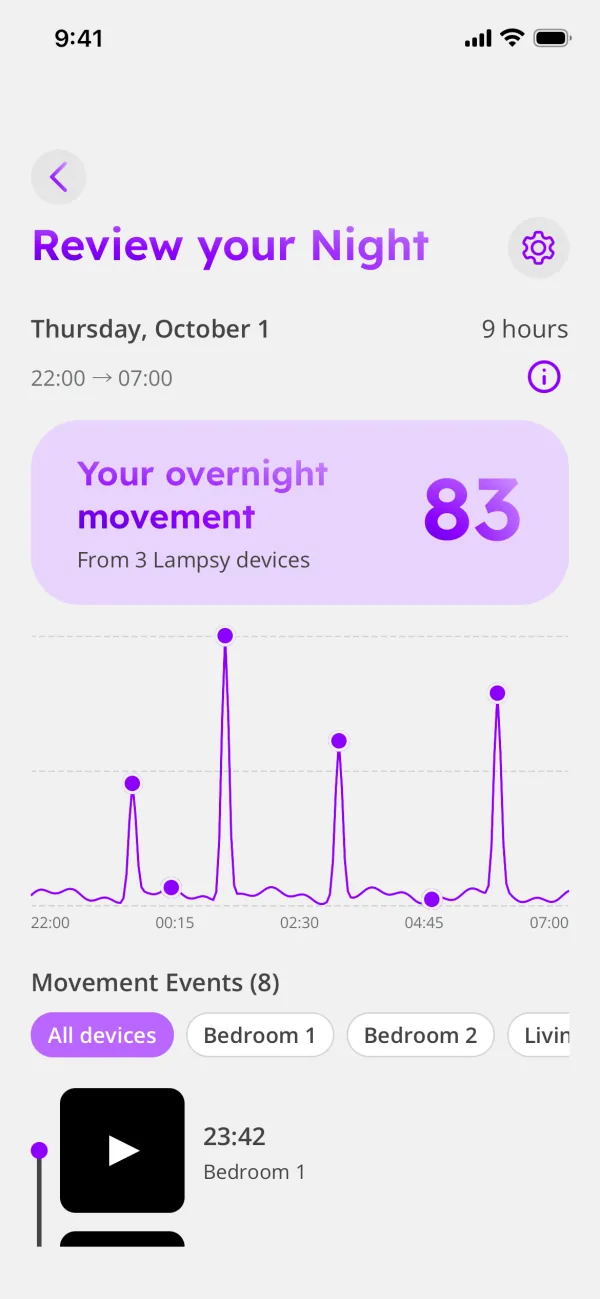
In the Night Review graph, unobserved time is shown as a gap rather than as no movement. Switching recording off stops video clips from being created, but does not by itself disable the entire night-review feature (the motion data shown in the graph will continue to be generated if Lampsy® remains powered).
Related guides: My night review hasn’t appeared; Lampsy® keeps restarting or doesn’t recover after a power cut
Guide 36: Monitoring happens at the wrong time
The problem: General motion notifications or night review start or stop at times that do not match your selected hours.
What to do
- Check the hours for each feature separately: Active hours for general motion alerts, and the hours in Night Review Settings.
- Confirm your current location and local time zone.
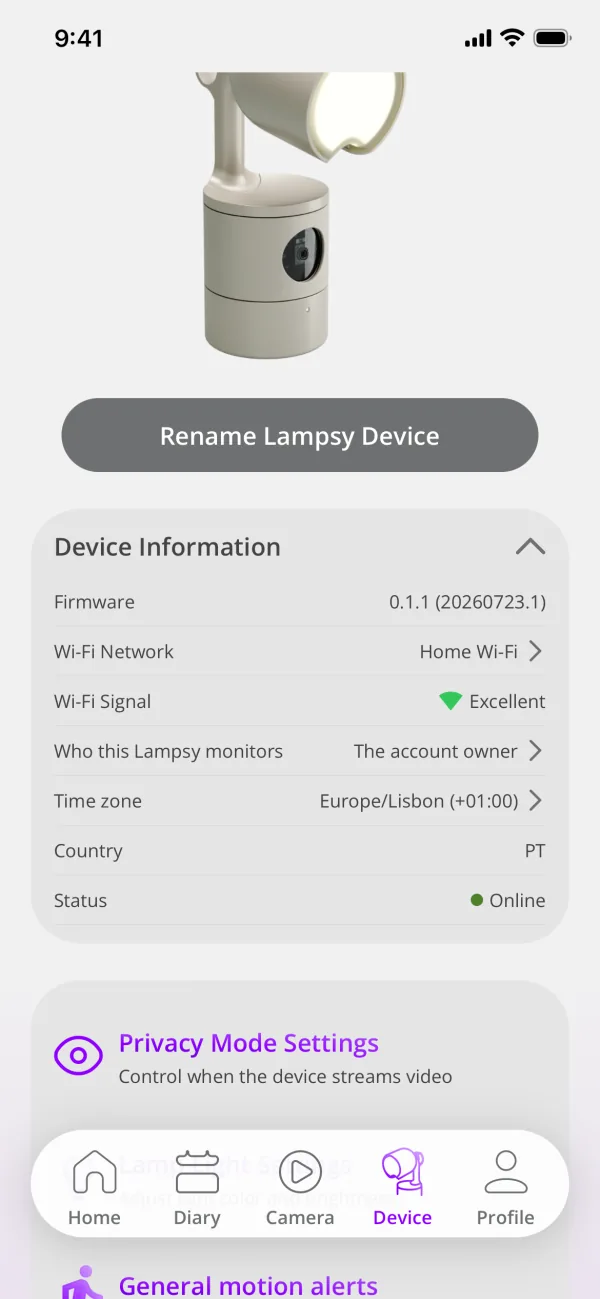
- Check Time zone under Device Information in the Device tab.
- Note the selected hours and actual local start or stop times.
- Contact support if they do not match, including any recent travel or seasonal clock change.
Avoid repeatedly shifting the schedule to compensate before the cause is understood.
Related guides: My changes to night-review hours haven’t taken effect; I’m not receiving motion notifications
Guide 37: My changes to night-review hours haven’t taken effect
The problem: You changed the review hours, but the current night continues using the previous schedule.
What to do
- Check that the app shows your new hours.
- Leave them in place for the next session.
- If you want to stop review work immediately, switch it off in Night Review Settings.
- Avoid repeatedly switching it off and on to create another session.
- If the next session still uses unexpected hours, contact support with both schedules.
Once a session starts, its hours remain fixed. Schedule changes apply to the next session.
Related guides: Monitoring happens at the wrong time; My night review has gaps or ends early
Restarts, updates and support
Guide 38: Lampsy® says some features may be disabled
The problem: A general device notification says some features may be unavailable, without naming one specific feature.
What to do
- Read whether recovery is underway or support is requested.
- Leave Lampsy® powered during recovery, even if it seems to be shutting down.
- Close live viewing while it recovers.
- Note which features are unavailable.
- Contact support if requested or if the problem continues.
Lampsy® may temporarily pause live viewing or uploads during recovery. The message does not necessarily mean every feature has stopped.
Related guides: The video freezes, stutters, or keeps stopping; Lampsy® says it’s back to normal, but I’m still having problems
Guide 39: Lampsy® keeps restarting or doesn’t recover after a power cut
The problem: Lampsy® repeatedly shows its startup lights or fails to return to normal operation after losing power.
What to do
- Check that the power connection is secure and the socket works reliably.
- Observe the startup light pattern.
- If startup completes, check connectivity and fault notifications.
- If startup keeps repeating, record a short video.
- Contact support, including any purple flash pattern.
Some updates and recovery attempts restart Lampsy® automatically. Repeated startup without returning to normal needs investigation.
Avoid repeatedly interrupting power during startup.
Related guides: What do Lampsy®’s coloured lights and flashing patterns mean?; A software update seems stuck or Lampsy® hasn’t come back online
Guide 40: A software update seems stuck or Lampsy® hasn’t come back online
The problem: An update has not visibly finished, or Lampsy® remains unavailable after an update restart.
What to do
- Keep Lampsy® connected to power and the internet.
- Check any update status or failure message in the app.
- Allow for a restart during the update.
- Check whether the status light returns to steady green.
- If failure is reported or Lampsy® remains unavailable, contact support with the last status and its time.
Update duration varies. Do not interrupt power or perform a factory reset to force completion. Powering off or rebooting a Lampsy® during an update might cause that update to fail.
Related guides: Lampsy® keeps restarting or doesn’t recover after a power cut; Lampsy® appears offline even though my Wi-Fi is working
Guide 41: How to shut down or restart Lampsy®
The problem: You need to stop Lampsy® or restart it, but are unsure which action to use.
To shut down
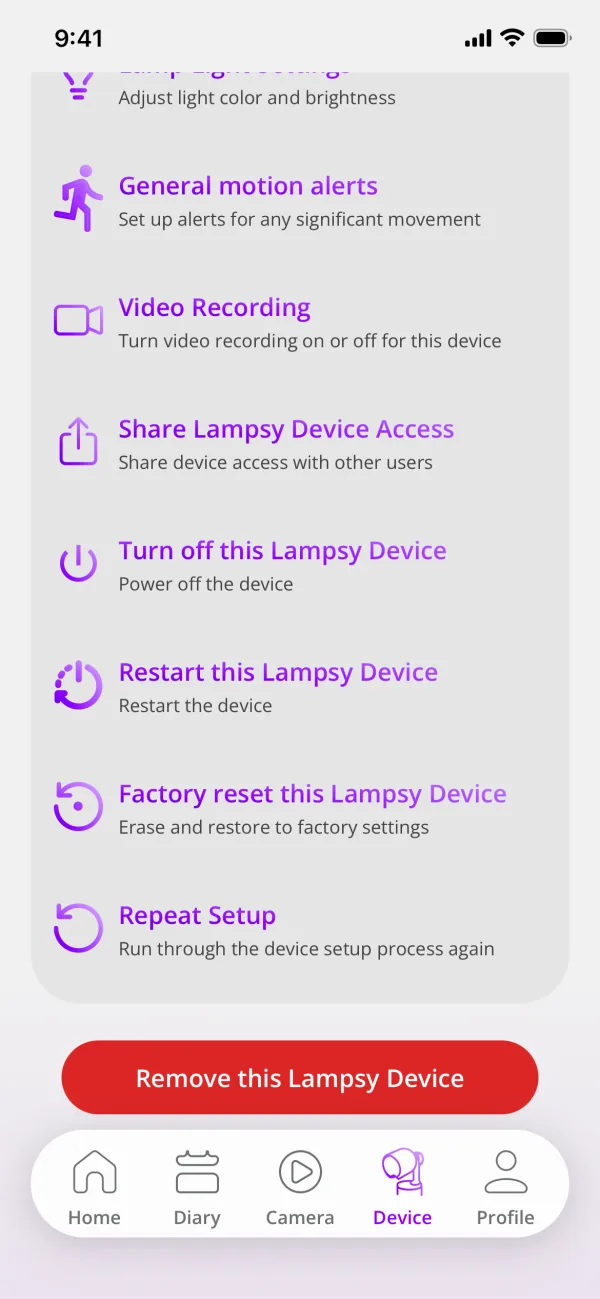
- Hold the power button for about three seconds, or select Turn off this Lampsy® Device in the Device tab of the app.
- Listen for the double beep if sound output is working.
- Let shutdown finish. The status light is steady red during shutdown.
- To remove Lampsy® from the power supply, wait for the status light to be fully off.
To restart
- Select Restart this Lampsy® Device in the Device tab of the app. Lampsy® shuts down first, then starts again.
- Let shutdown finish. The status light is steady red during shutdown.
- Allow startup to finish.
- Check connectivity and any notifications.
A short power-button press does not request normal shutdown.
Related guides: The touch buttons aren’t responding or do something unexpected; When to reset Lampsy® and what the reset changes
Guide 42: When to reset Lampsy® and what the reset changes
The problem: You are considering a factory reset and need to understand its effect before proceeding.
What to do
- Confirm with support that a reset is appropriate, or use Factory reset this Lampsy® Device in the Device tab of the app.
- Note the settings you want to restore.
- Have your Wi-Fi name and password ready.
- Use the available reset option or follow support’s instructions.
- After the restart, reconnect Lampsy® and review its settings.
A reset restores the default settings and removes saved Wi-Fi details. General motion alerts, Review your Night and other features return to their default, which is off.
A reset is not the way to erase recordings or remove account ownership.
Related guides: Lampsy® won’t connect to my Wi-Fi; Contacting Lampsy® support: what information to provide
Guide 43: Lampsy® says it’s back to normal, but I’m still having problems
The problem: A recovery notification arrived, but a feature still fails or another fault remains.
What to do
- Read which issue the recovery message refers to.
- Check for other active fault notifications.
- Try the affected feature again.
- Confirm that its settings remain enabled.
- Contact support with the recovery message and your continuing symptoms.
The message means that the issue it names has cleared. Other issues may still be active if you have not had a recovery notification for them.
Some issues can leave gaps: Lampsy® cannot recreate missed footage or fill earlier gaps in a night review.
Related guides: Lampsy® says some features may be disabled; Contacting Lampsy® support: what information to provide
Guide 44: Contacting Lampsy® support: what information to provide
The problem: A notification asks you to contact support, or troubleshooting has not resolved the issue.
What to do
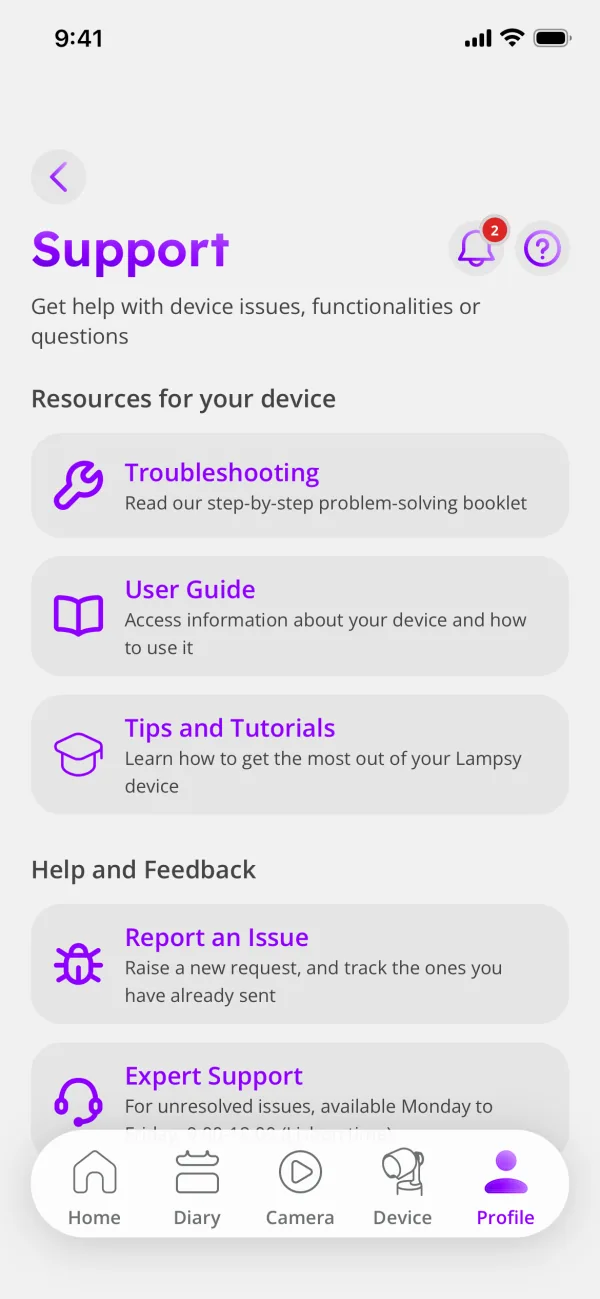
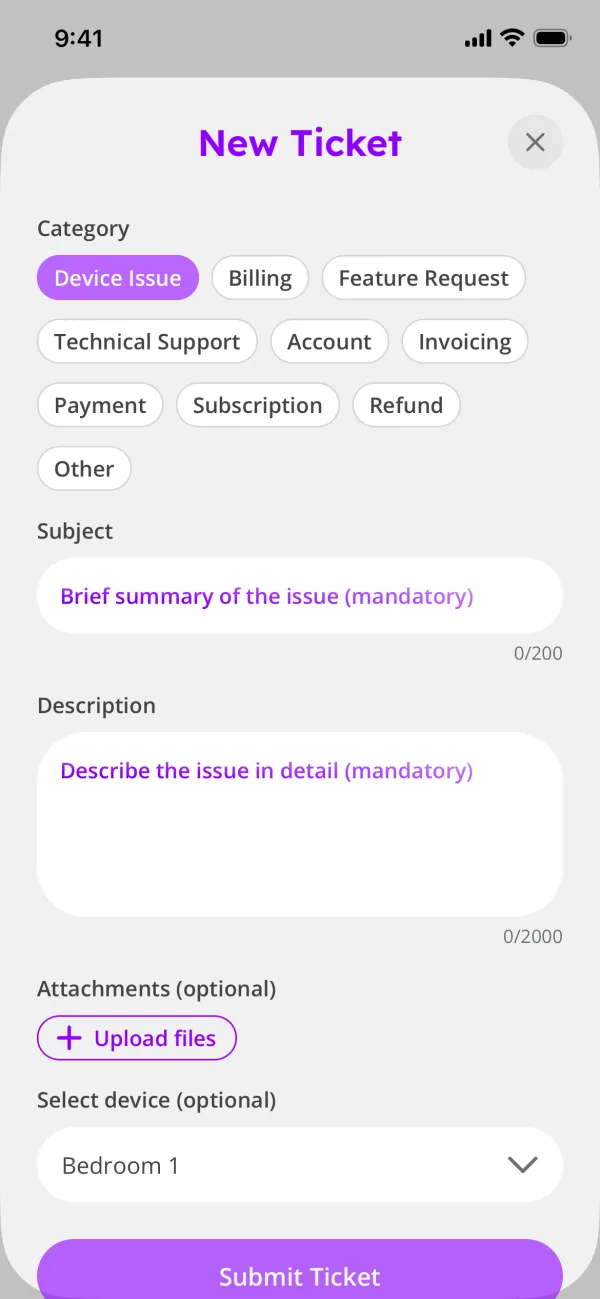
- Use your usual Lampsy® support channel, such as Report an Issue in Help & Support, in the app’s Profile tab.
- Provide the serial number printed on the label on your Lampsy®, and the exact notification text or a screenshot.
- State when the issue happened, including your local time zone.
- Describe the affected feature, status lights, and sounds.
- Explain the steps you tried and any recent power cut, router change, setup attempt, or update.
- Include event times for missing recordings, the date of a missing night review, or any videos of the device’s behaviour.
A video helps with repeating light or sound patterns. Do not send your Wi-Fi password or sensitive information.
Related guides: Lampsy® keeps beeping or flashing red or purple; Lampsy® says it’s back to normal, but I’m still having problems
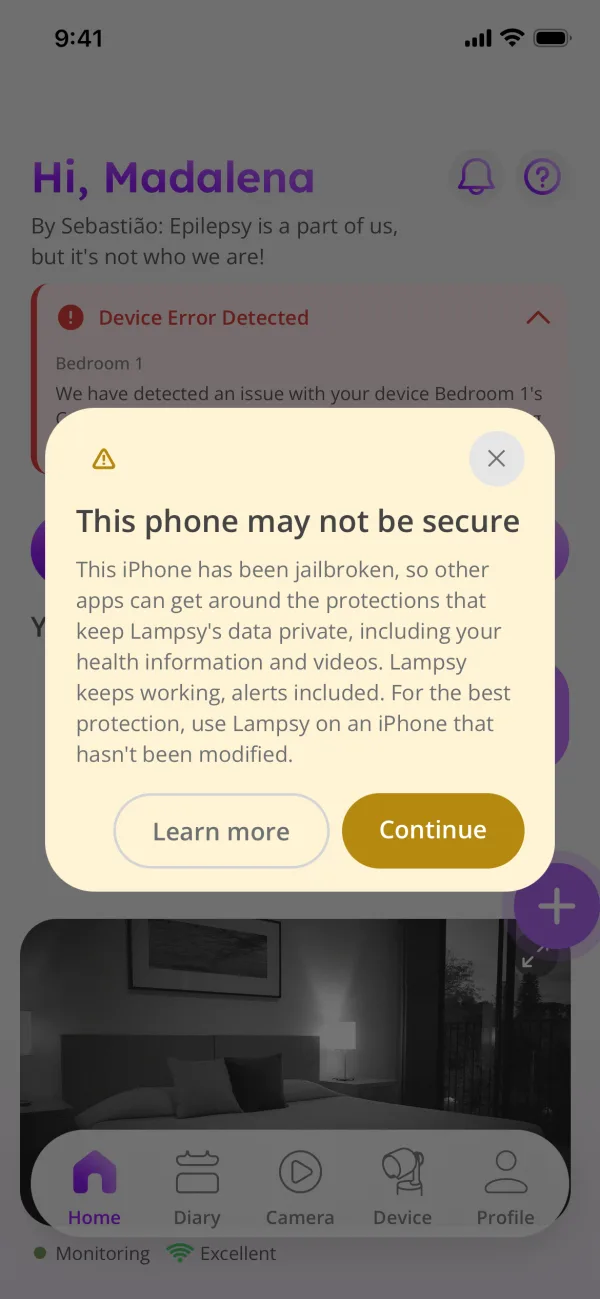
Guide 45: Lampsy® says my phone may not be secure
The problem: The app shows a warning titled This phone may not be secure. It found that the phone was rooted (Android) or jailbroken (iPhone), or that it has software that can change how other apps work, such as Xposed or Frida.
What to do
- Read the warning. It doesn’t block anything: abnormal movement alerts, live video and the Diary keep working.
- Tap Learn more to read what the warning means, or Continue to close it.
- For the best protection, use Lampsy® on a phone that hasn’t been modified. If the warning is about software that changes how other apps work, remove that software or use Lampsy® on another phone.
- If you didn’t modify the phone, or think the warning is a mistake, email support@lampsyhealth.com with the phone’s model and system version.
The warning appears once. It appears again only if Lampsy® finds something different on the same phone, for example software that changes how other apps work.
Related guides: Contacting Lampsy® support: what information to provide
Guide 46: The app says my account was removed
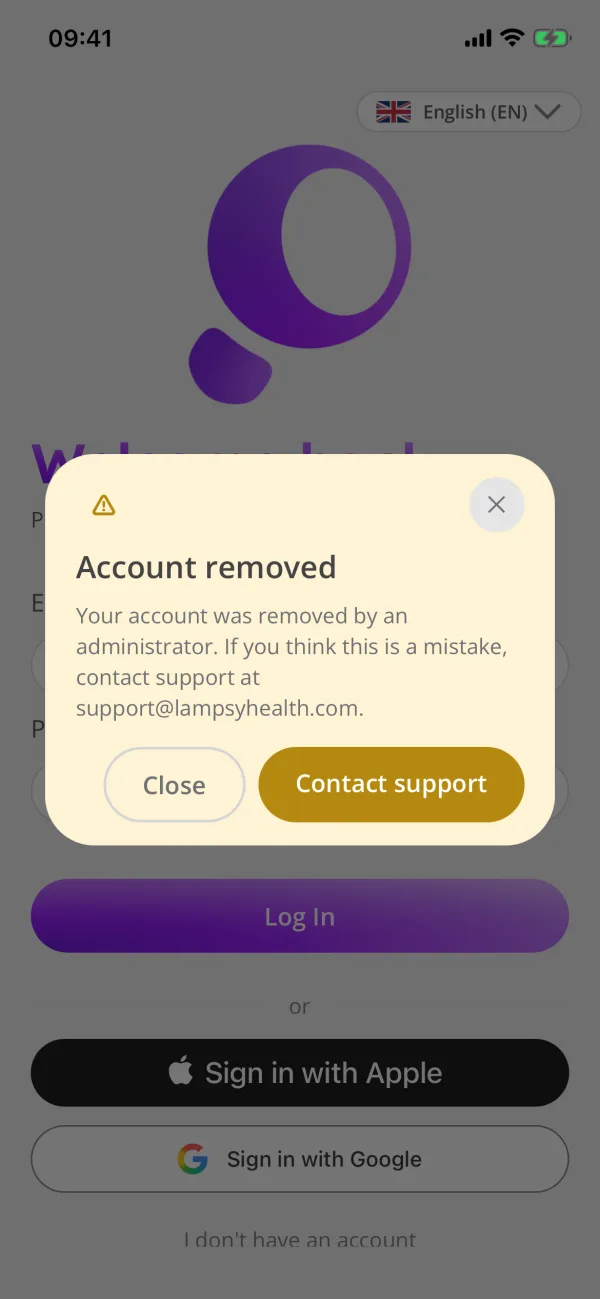
The problem: When you sign in, the app shows Account removed: an administrator removed your account.
What to do
- If you think this is a mistake, tap Contact support. It opens an email to support@lampsyhealth.com.
- Contact support as soon as you can. Support can restore a removed account for 30 days; after that, the account is erased and can’t be restored.
Related guides: Contacting Lampsy® support: what information to provide; The app says this Lampsy® was removed by Lampsy® support
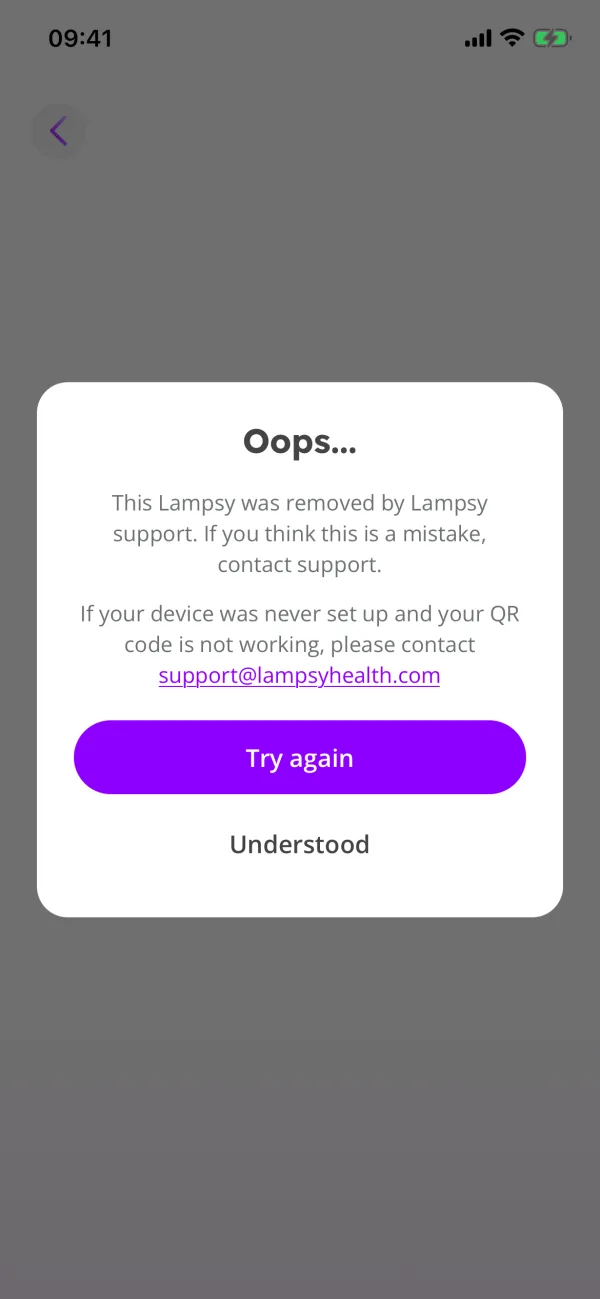
Guide 47: The app says this Lampsy® was removed by Lampsy® support
The problem: When you set up a Lampsy®, the app refuses its code with Oops...: this Lampsy® was removed by Lampsy® support.
What to do
- Check that the code belongs to the right Lampsy®. Try again, or Scan again after scanning a QR code, lets you enter it again; Understood closes the message.
- If you think this is a mistake, contact support at support@lampsyhealth.com.
- Contact support as soon as you can. Support can restore a removed Lampsy® for 30 days; after that, it is erased and can’t be restored.
Related guides: The app says my account was removed; Contacting Lampsy® support: what information to provide
Still need help?
Contact our support team, and see guide 44 for what to include so we can help you faster.
Contact support