

Instructions for use
Lampsy® User Guide
How to set up and use the Lampsy® System safely: what it is for, how to install it, and how to look after it.
Draft edition: this edition of the instructions for use is being finalised and may change. If anything here differs from the instructions that came with your Lampsy®, follow those and contact support.
- Edition
- Instructions for Use Rev 1.0 (26 March 2026)
- Last updated
- 18 October 2026
- Device references
- LAMPSY-AP-00, LAMPSY-BK-01, LAMPSY-GL-02, LAMPSY-RD-03
- UDI
- 5600283390007L
About Lampsy®
What is the Lampsy System
The Lampsy System is a medical device made of two parts: the Lampsy Device, a lamp with a built-in camera, and the Lampsy App, the mobile application that goes with it.
In the box
- The Lampsy Device.
- A power supply unit (input: 100 to 240 V AC, 50 to 60 Hz; output: 5.1 V, 5.0 A, 25.5 W).
- These instructions for use.
How Lampsy works
The Lampsy Device is designed for use at home or in a residential care setting. Its camera is pointed at the area you want to monitor, usually where the person spends most of their time, such as their bed.
The device captures images in real time and processes them with a technique called Optical Flow, which turns them into anonymised data that cannot be turned back into images. An integrated machine-learning algorithm on the device uses this data to evaluate whether an event may correspond to an abnormal movement characteristic of a tonic-clonic seizure.
When a potential abnormal movement is detected, Lampsy notifies a caregiver or emergency contact through a notification in the Lampsy App and, if you have set one up, an automated phone call. If you have turned on video recording, this is when the device saves and sends a video of the event, so you can review it later. You can turn recording off at any time.
Lampsy uses infrared LEDs to detect abnormal movements in low light. The visible lamp light is a non-medical feature and does not need to be on for Lampsy to work correctly. The LEDs have been evaluated in accordance with IEC 62471 (Photobiological Safety of Lamps and Lamp Systems) and are classified as Risk Group 0: they present no photobiological hazard to the user or the patient during normal use.
The Lampsy App
The Lampsy App is used for the initial set-up and shows notifications, live video and recorded videos. Its Diary shows when abnormal movements happened and lets you add notes. The app also has non-medical features, such as live video and general motion alerts, similar to a baby monitor.
The app runs on Apple devices with iOS 15.1 or later and on Android devices with Android 7.0 (API 24) or later. Minimum hardware: 2 GB of RAM, 200 MB of free storage, a screen at least 360 dp / 375 pt wide (5 inches or larger, optimised for 1080 × 1920), a GPU with OpenGL ES 3.0 or Metal, 4G LTE or Wi-Fi, and Bluetooth Low Energy 4.2 or later. The iOS and Android apps work the same way unless this guide says otherwise.
Note: Some features depend on your plan: Review your Night, the manual alert, how many emergency contacts and secondary users you can have, and how long videos are kept. Features your plan doesn’t include don’t appear in the app.
Warning: This product cannot be used on devices or operating system versions that are not supported.
Warning: To use this medical device as intended, read and follow all the instructions in this guide.
Intended use
Lampsy is a medical device system intended for monitoring abnormal movements that may be associated with seizure events. The system consists of the Lampsy hardware, which analyses video footage for non-physiological motion in order to detect abnormal movements and automatically send a notification when such events occur; and the Lampsy software application (mobile app), which facilitates initial system configuration, supports real-time video streaming, provides secure storage and retrieval of recorded footage, and displays user notifications.
The device is intended for use by adult patients who want to monitor their condition, or caregivers to remotely monitor children or adults with epilepsy. The device provides real-time notifications to emergency contacts or caregivers when abnormal movements are detected, and is designed for use in home settings and residential care settings.
Intended users and environments
The Lampsy System was developed to be used by individuals with a prior diagnosis of epilepsy, of any gender and aged over 2 years, who may experience episodes of motor seizure. The device was designed for use in a home environment. No specialised medical or technical training is required to operate the Lampsy Device.
The Lampsy account is held by an adult aged 18 or over. To use Lampsy for a child, a parent or guardian creates the account.
Indications for use
The Lampsy System was developed to be used by individuals with a prior diagnosis of epilepsy, of any gender and aged over 2 years, who may experience episodes of motor seizure.
Contraindications
There are no known contraindications for using Lampsy.
Warnings and limitations
Warnings and cautions
Warning: The Lampsy device was designed to help patients and caregivers monitor abnormal movements, and should under no circumstances replace currently established clinical practices.
- Avoid tangling the cables, to prevent damage and malfunctions.
- Do not use unauthorised accessories with the device.
- Do not open the device or try to reach its internal parts.
Emergency: Your emergency contacts are not public authorities or emergency services. In an actual emergency, call 112.
Limitations
The Lampsy System does not detect, diagnose, or predict epileptic seizures. The safety and performance of the Lampsy System have not been established for the monitoring of abnormal movements associated with non-convulsive movements. The Lampsy System was not designed to be used as guidance for diagnostic decisions or for the introduction of therapeutic changes.
Lampsy is not a foolproof system: it may miss movements and may give false alarms.
Cloud and network dependencies
The Lampsy device can only generate notifications and calls if it is connected to a Wi-Fi network. The connection between the application and the Lampsy device may be interrupted or experience delays if a stable Wi-Fi network is not available. Should the device lose connection, or in the rare event that our servers become unavailable, both the application and the device will notify you.
Our servers are hosted on AWS infrastructure, with an availability of over 99%. For connection problems, see the troubleshooting guide.
Electromagnetic interference
Electromagnetic disturbances may cause a temporary reduction in detection performance. You may notice delayed alarms, missed alarms, false alarms, interrupted monitoring, a temporarily frozen image, the app failing to communicate, or a system restart.
- Place Lampsy at least 30 cm away from any other equipment that emits radio frequency.
- Avoid placing Lampsy near high-power electrical equipment or radio transmitters.
- If the problem continues, move Lampsy somewhere else or contact support.
What Lampsy needs to work
- The Lampsy App installed on your phone.
- Your phone, and the phones of your emergency contacts, able to receive calls and SMS messages.
- Your phone able to connect to Wi-Fi or a mobile network.
- The Lampsy Device plugged in to a stable power supply at all times.
- The Lampsy Device connected to a stable Wi-Fi network at all times.
Your phone’s internet connection
Your phone needs an internet connection, through Wi-Fi or mobile data, only to:
- Receive the notifications your Lampsy sends.
- Watch live video.
- Change your Lampsy’s non-medical settings in the app.
If your phone loses its internet connection, you can still be alerted to an abnormal movement by an automated phone call, if you have added an emergency contact, and by an alarm from the Lampsy Device, if the notification chain fails.
Lampsy’s Wi-Fi connection
The Lampsy Device needs a stable Wi-Fi connection to:
- Send notifications to your phone.
- Receive changes to its non-medical settings.
- Send diagnostic and telemetry information that helps keep it working well.
The device stores data locally all the time. Without a stable and continuous Wi-Fi connection, this data can build up, fill the device’s storage and reduce its performance.
Note: If Lampsy’s Wi-Fi connection fails, or the notification chain fails, you can still be alerted to an abnormal movement by an audible alarm from the Lampsy Device.
Bluetooth
Your phone only needs Bluetooth during set-up, and only if you choose Bluetooth Setup. After that, Bluetooth is only needed to set your Lampsy up again or to add another Lampsy.
Getting started
Set up a Lampsy device
Before you start
- Keep the QR code that came with your Lampsy at hand.
- Connect your phone to the Wi-Fi network Lampsy will use: Lampsy joins the network your phone is on. Setup needs Wi-Fi, so mobile data won’t work. A hotspot works only if it comes from another phone, not from the one you’re setting up with.
- Networks that ask for a username as well as a password (most office and university Wi-Fi), or that ask you to sign in on a web page (as in hotels), can’t be used. Some guest networks keep devices apart, so your phone can’t reach Lampsy.
1. Place Lampsy
- Take Lampsy out of the box and place it between 1 and 3 metres from the area you want to monitor, at eye level or slightly above (around 1 to 1.5 metres from the ground), with nothing blocking its view. Point it towards the centre of that area.
- Connect the power supply to Lampsy and to a wall socket. Place the power supply so that its plug is easy to reach: unplugging it is how Lampsy is disconnected from the mains.
- Wait a few seconds. The status light changes between red, green and blue while Lampsy turns on.
2. Create your account and pair Lampsy
- Download the Lampsy App from the App Store (iPhone) or Google Play (Android), open it and tap Get Started.
- If you have no account yet, tap I don’t have an account, then First Time Device Setup, and scan the QR code that came with your Lampsy. If it can’t be scanned, tap Can’t scan? Enter code and type the Device Identifier and Device Key.
- Create your account with your name, email and a password of at least 8 characters, with an uppercase letter, a lowercase letter and a number. Tick I’m at least 18 and accept the Terms of Service & Privacy Policy. Lampsy accounts are for adults: to set Lampsy up for a child, create the account as their parent or guardian.
- Enter the 6-digit code we email you, to confirm your address.
- You are offered two-factor authentication. We recommend turning it on, now or later (see Account and security).
Already have an account? Log in. To add another Lampsy later, open the Device tab and tap Add a device.
If your Lampsy code isn’t accepted, the app says why. What to do:
- The pairing has expired, or the Lampsy wasn’t found: scan the QR code again.
- The code wasn’t accepted or couldn’t be verified: check the Device Identifier and Device Key and try again. If the app says the QR code isn’t a Lampsy code, make sure you are scanning the one that came with your Lampsy, or type the code instead.
- The Lampsy already has an owner, or has already been set up: ask its owner to share access with you in Profile > Manage Access (see Add Secondary Users), or to transfer ownership to you.
- The Lampsy has reached the number of people who can have access: ask its owner to make room for you in the app.
- The Lampsy isn’t ready to be paired yet: contact support@lampsyhealth.com.
- The Lampsy couldn’t be added: check your phone’s internet connection and try again.
If this happens while you create your account, the message starts with “Your account was not created.” Scan the QR code again and, once it is accepted, create your account. If a message keeps coming back, contact support@lampsyhealth.com.
3. Connect Lampsy to your Wi-Fi
- On Home, tap Setup Device Now. If you leave it for later, Continue setup takes you back.
- In Grant Permissions, allow what the app asks for. Location (and Local Network on iPhone) are needed to find your Wi-Fi network. The app uses your location only during setup, to read the network’s name. Your location is never tracked or sent to Lampsy’s servers. Notifications are optional, but turn them on so you are told about abnormal movement (see Turn on critical notifications).
- Choose Quick Setup (recommended) or Bluetooth Setup. If one way doesn’t work, try the other.
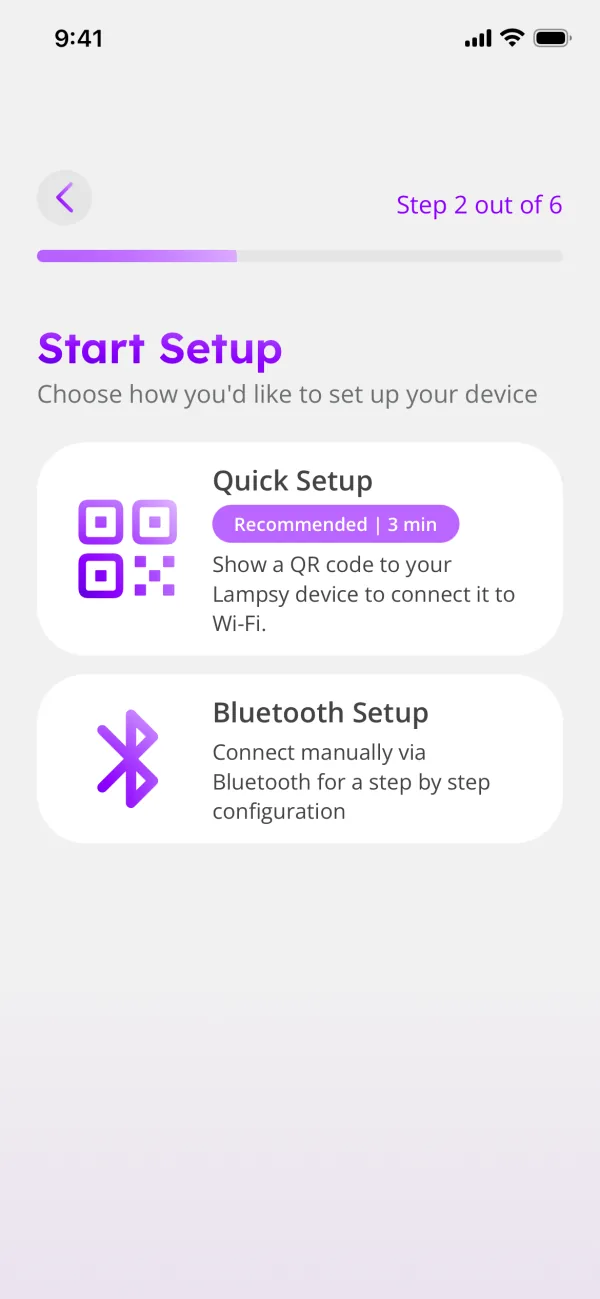
Quick Setup:
- Hold the setup button on top of Lampsy for about 2 seconds, until the status light flashes blue, then tap My Lampsy Device is in Setup Mode.
- Check the network name, type your Wi-Fi password and tap Continue. You can also scan your router’s Wi-Fi QR code with Scan Wi-Fi QR Code. To use another network, connect your phone to it first (Change Network).
- Hold your phone’s screen in front of Lampsy’s camera with the whole QR code visible, and keep it steady. Tap the code to enlarge it.
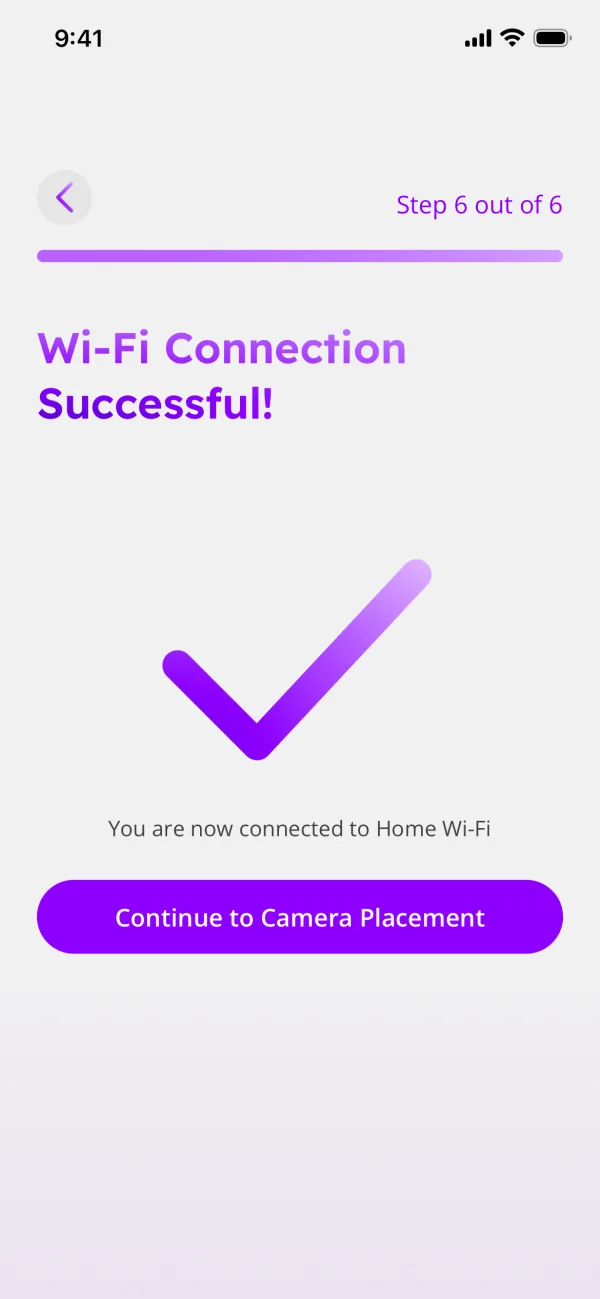
- Lampsy beeps once when it has read the code, and its blue light gently brightens and dims while it connects. When it has joined, the app shows Wi-Fi Connection Successful! and the status light turns steady green.
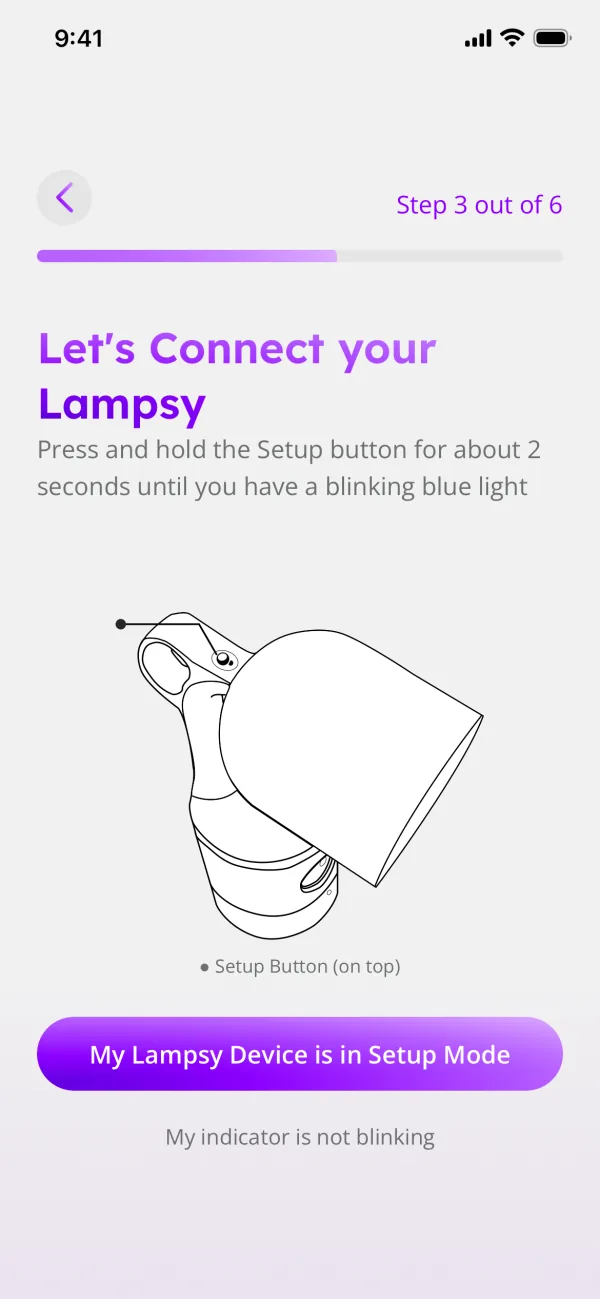
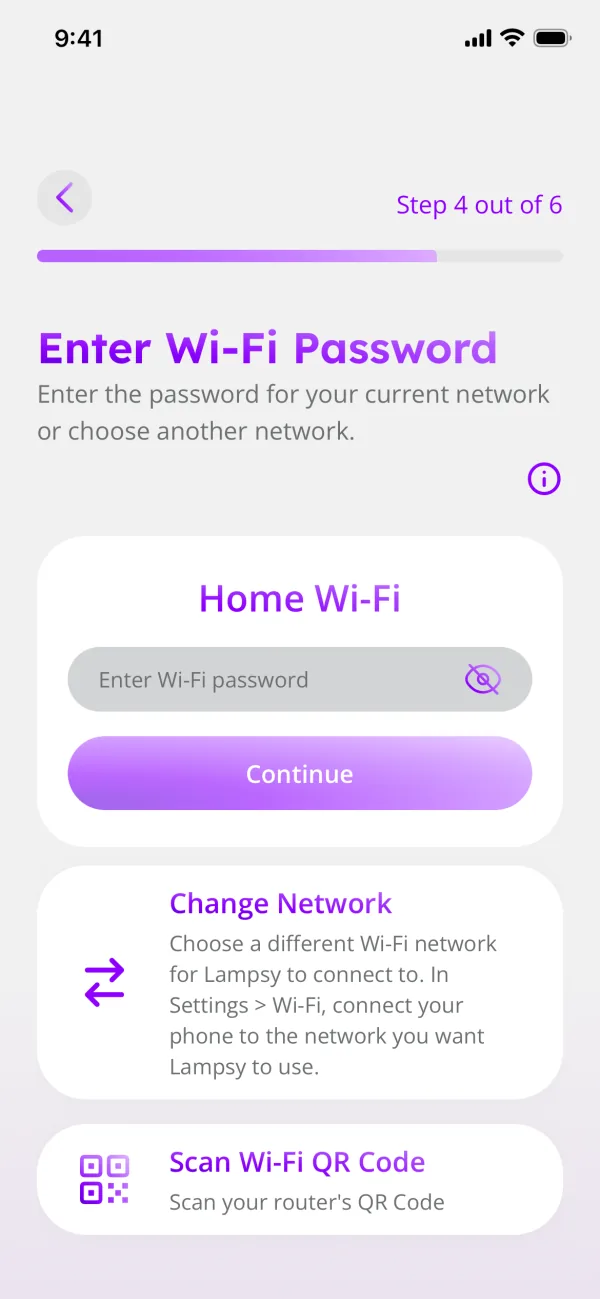
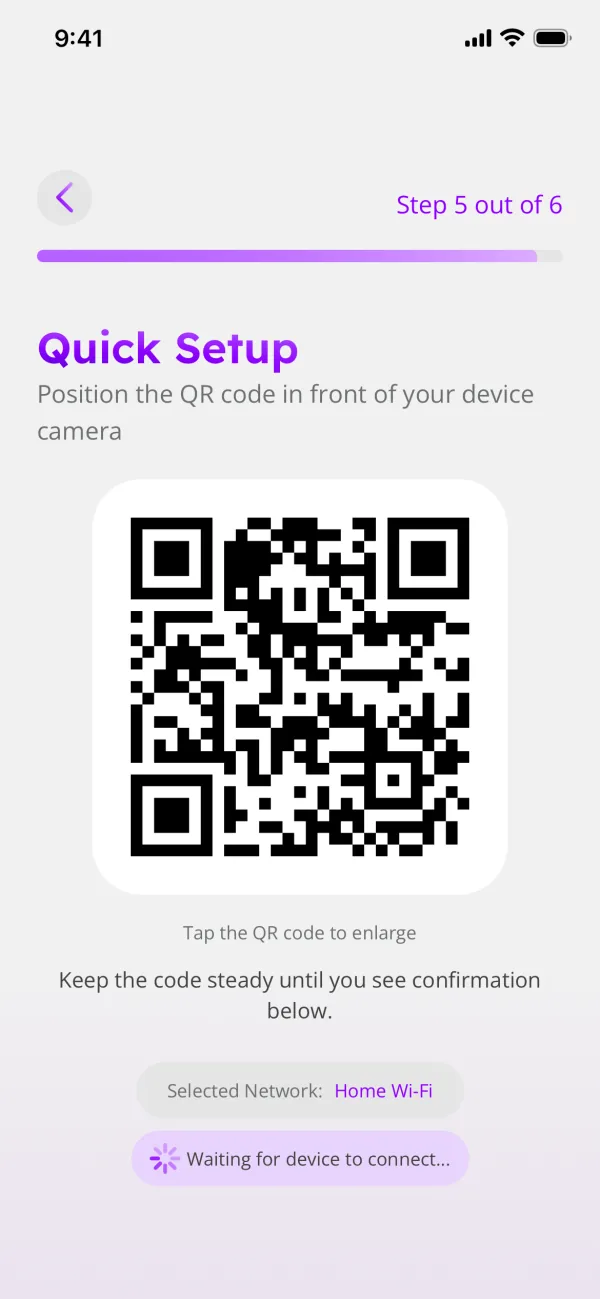
Bluetooth Setup:
- Hold the setup button for about 2 seconds, until the status light flashes blue. Tap Already Pressed Lampsy Pairing Button and allow Bluetooth.
- Keep your phone within about 1 metre of Lampsy. Choose your Lampsy in the list and tap Pair. Android shows two pairing prompts: accept both. On iPhone, accept the pairing when asked.
- Tap Continue to Wi-Fi Setup, type your Wi-Fi password and tap Continue. Bluetooth Setup can’t send a password that contains a comma.
- When Lampsy has joined, the app shows Wi-Fi Connection Successful!
Note: Setup mode ends after about 10 minutes. If the blue light has stopped flashing, hold the setup button for about 2 seconds to start again.
4. Say who Lampsy monitors
Before the camera is used, the app asks Who will this Lampsy monitor?: yourself, a child you are the parent or guardian of, or another adult who has agreed to it. Read the statement for your choice and tick I confirm. Without this consent, Lampsy won’t stream or record.
5. Point the camera
Positioning the camera is the most important step of the set-up: it is what makes detection accurate.
- Make sure the privacy shutter is fully open.
- Use the live picture, the arrows and the zoom to frame the area to monitor, so the person’s whole body is visible: neither so far away that the person is small, nor so close that only part of the body shows. Ideally, Lampsy is above bed level.
- Tap Save Camera Settings.
Note: For this step the app sets the video privacy to Full View, and it stays that way after setup. You can change it at any time (see Live video and privacy).
6. Name your Lampsy and add emergency contacts
Give your Lampsy a name, which appears in your device list and notifications, then add the people who should be called if an abnormal movement is detected (see Add Emergency Contacts). You can skip both and finish later from Home. Setup ends with Setup Complete!: tap Start using Lampsy.
To set Lampsy up again, for example after changing your router, use Repeat Setup on its page in the Device tab. If set-up doesn’t work, see the troubleshooting guide.
Turn on critical notifications
Alerts about abnormal movement are always on in the Lampsy App and can’t be turned off there. Whether they reach you depends on what your phone allows. The app shows this in Profile > Application Settings > App Permissions, with a button to allow each one or open your phone’s settings.
On iPhone
- In App Permissions, allow Notifications first.
- Then allow Critical Notifications, so alerts sound even when the phone is on silent or Do Not Disturb is on. If the row shows Not allowed, tap Open Settings and turn on Critical Alerts for Lampsy under Notifications.
- Come back to Lampsy: the rows update.
On Android
- In App Permissions, allow Notifications.
- Next to Allow critical alerts during Do Not Disturb, tap Open Settings and give Lampsy Do Not Disturb access. Abnormal movement alerts then ring through Do Not Disturb; other notifications stay silent.
- Allow Allow background battery use, so alerts arrive straight away: when battery use is restricted, Android can hold them back for several minutes. If your phone also shows Remove manufacturer battery limits, open it and let Lampsy run in the background.
- Come back to Lampsy: the rows update.
Warning: Without notifications, the app can’t tell you when an abnormal movement is detected, and the Home tab shows a banner saying permissions are missing. Automated calls to your emergency contacts still go out.
For the people you share Lampsy with, you choose in Manage Access whether they get Receive Critical Alerts (see Add Secondary Users).
Add Emergency Contacts
Your emergency contacts receive an automated phone call when an abnormal movement is detected. They are called one at a time, in the order you set. Contacts belong to your account and apply to every Lampsy on it.
Emergency: Emergency contacts are not public authorities or emergency services. Calls and notifications from Lampsy support epilepsy monitoring. In an actual emergency, call 112.
- Open Profile > Emergency Contacts (or add them during setup) and tap Add Emergency Contact.
- Allow access to your phone’s contacts and choose the person. Contacts are picked from your phone’s address book.
- Check their name, their phone number with its country code, and their Preferred Language, then tap Add Contact.
- We send them a 6-digit code by SMS. Ask them for it and enter it to verify the contact. A contact not verified within 30 minutes is removed, and you can add them again.
- With two or more contacts, use the arrows to set the order they are called in.
Each contact’s card shows the number Lampsy will call from. Share it with them and ask them to save it, so they recognise the call. You can edit or remove a contact at any time.
Note: To receive calls yourself, add your own phone number as an emergency contact, even if you are the main user.
How many emergency contacts you can add depends on your plan. If you have more than your plan covers, the extra contacts are marked, and they are not called.
Manual Alert
On plans that include it, you can call your emergency contacts yourself: on Home, tap the quick actions button and then Manual Alert, or press and hold the button. A 10-second countdown starts; tap Cancel Call to stop it. At zero, Lampsy calls your emergency contacts.
Check that Lampsy is working
To make sure Lampsy is installed correctly and monitoring:
- Lampsy is plugged in and set up as described in this guide.
- The live video shows the whole area you want to monitor.
- Nothing blocks Lampsy’s view, including its own privacy shutter.
- Lampsy is not pointing straight at a strong light source, such as a bright lamp or a window.
- The app shows Lampsy as Monitoring, in the Camera or the Device tab.
- Lampsy’s Wi-Fi signal is at least fair. A poor connection can delay or miss notifications.
Using Lampsy® day to day
Understand detected events
When Lampsy detects a potential abnormal movement, it notifies you and calls your emergency contacts, if you have any. The event appears in the Diary as Abnormal Movement Detected, with its time and, if video recording is on, a video.
- Tap the thumbnail to play the video, and Save Video to download it to your phone.
- Videos are kept for the period set in Profile > Privacy & Security > Data Retention, and each card shows when its video expires. Save the ones you want to keep.
- You can delete your own events with the bin icon on the card.
- Video recording is set for each Lampsy: Device tab > your Lampsy > Video Recording.
When there is no video
- The card shows No Video. Tap Why can’t I see this video? for the reason.
- Videos are stored on the Lampsy Device during the event and sent when the connection allows, so after a Wi-Fi problem a video can appear later than the event.
- Lampsy limits the number of event recordings per day. Once the limit is reached, later events that day have no video, but you are still notified and called.
- Turning recording on afterwards cannot create a video of an event that happened while it was off.
Note: If Lampsy detects an abnormal movement but cannot send the notification or the call, it sounds an alarm with a specific beep pattern.
For more, see An event has no video recording.
How to review your night
Review your Night summarises the movement Lampsy saw during the night. Each Lampsy’s main user turns it on for that Lampsy, and it is off by default. It is part of some plans; if yours doesn’t include it, its button doesn’t appear.
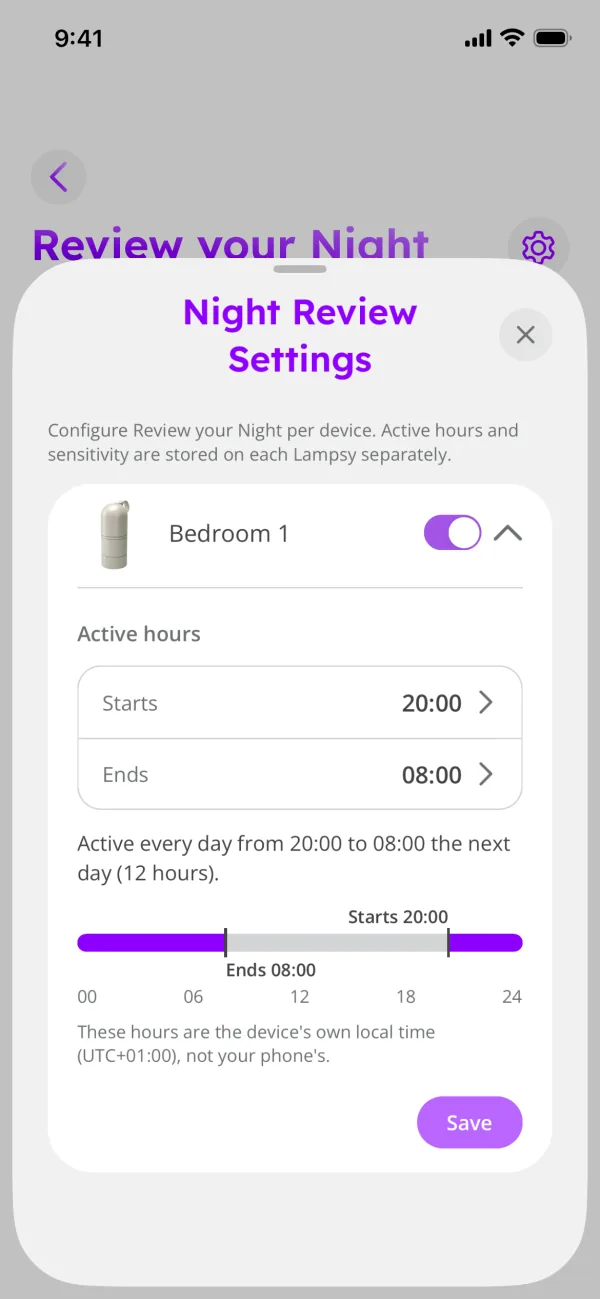
- On the Home tab, tap Review your Night, then the settings button at the top right to open Night Review Settings.
- Turn it on for your Lampsy and set Starts and Ends under Active hours. Times move in 30-minute steps, between 20:00 and 10:00 at most, in the Lampsy’s own local time. Tap Save.
- During the active hours the button reads Reviewing your night. When the night is over, open Review your Night to see it.
Reading it
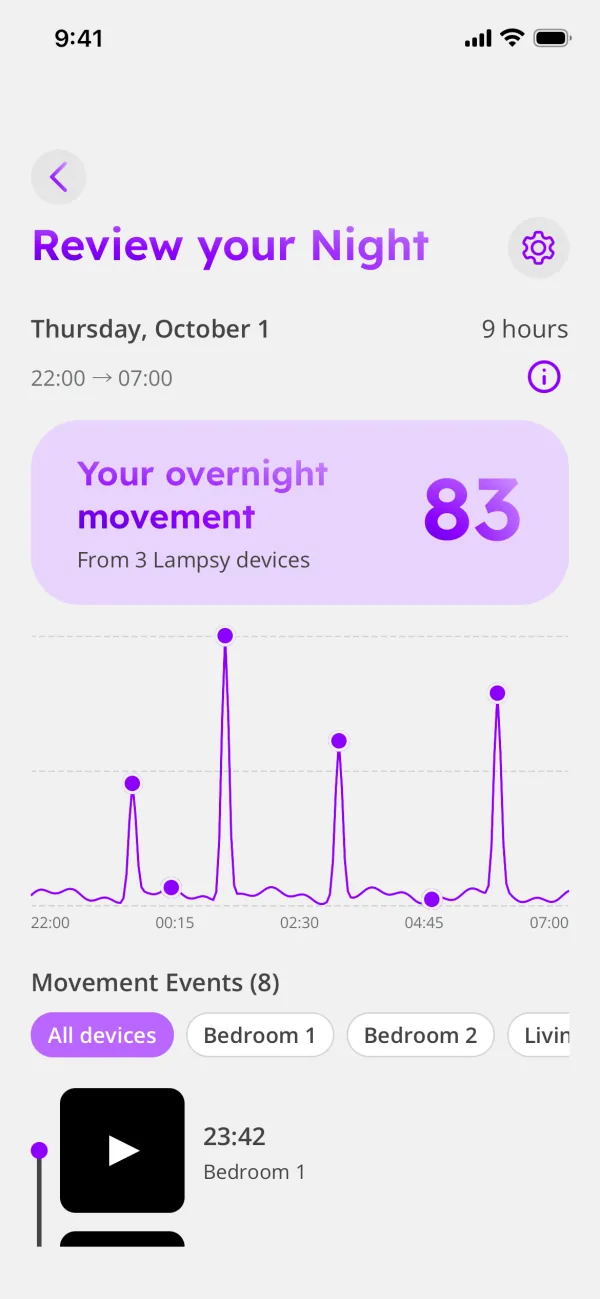
- Your overnight movement is one number for the whole night. A lower number means more movement, and a higher number a calmer night. It is most useful compared with your other nights.
- The graph follows movement from the start of the night to the end, compared with the night’s own peak. Each dot is a video: tap one to find it in the list. Touch and hold the line to see the time and the amount of movement.
- If Lampsy has no data for part of the night, for example while it was offline, the line joins the points on either side.
- Movement Events lists the night’s videos in order.
- Only the latest night is shown. The page says when it will be deleted.
Note: Once a night has started, its hours stay fixed. A change to the hours applies from the next night.
Live video and privacy
Lampsy works privacy-first: detection uses Optical Flow, which is privacy-preserving and cannot be turned back into images. Live video and recordings are separate options you choose.
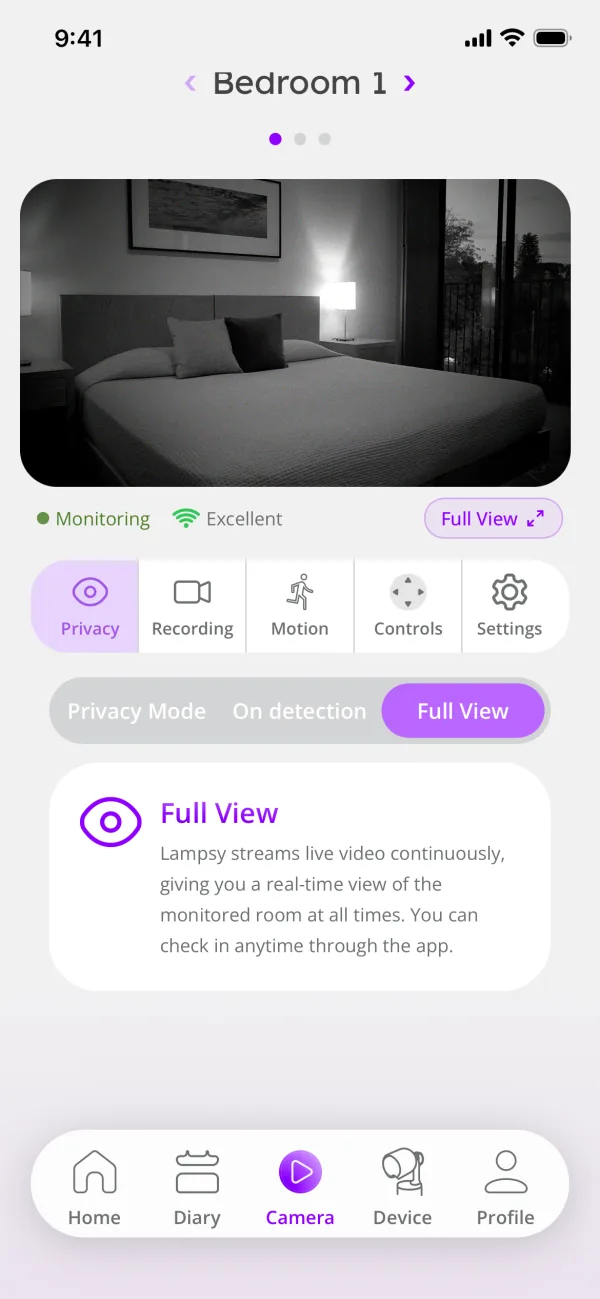
The Privacy setting, in the Camera tab or in Privacy Mode Settings on the Device tab, has three options. After setup it is Full View.
| Option | What it does |
|---|---|
| Privacy Mode | No one can watch live video. |
| On Detection | Live video is available only when an abnormal movement is detected. |
| Full View | Live video is available at any time. |
Video recording of detected events is a separate setting for each Lampsy (Video Recording, in the Device tab).
Note: Whatever privacy settings you choose in the app, Lampsy is always monitoring.
Warning: The privacy shutter on the device is different: closing it blocks the camera, so Lampsy can’t monitor while it is closed. Keep it fully open.
To protect live video with a code, set a Stream PIN in Profile > Privacy & Security: anyone who opens the stream, including you and the people you share with, is asked for it. Each live viewing session lasts up to five minutes, and up to two people can watch at the same time.
For more about privacy, write to privacy@lampsyhealth.com or read our Privacy Statement.
Camera controls
In the Camera tab:
- Controls: the direction pad moves the camera, and the zoom buttons zoom in and out.
- Settings: Saved presets stores a camera view you can return to. Focus Settings chooses Automatic focus, or Manual to adjust it yourself.
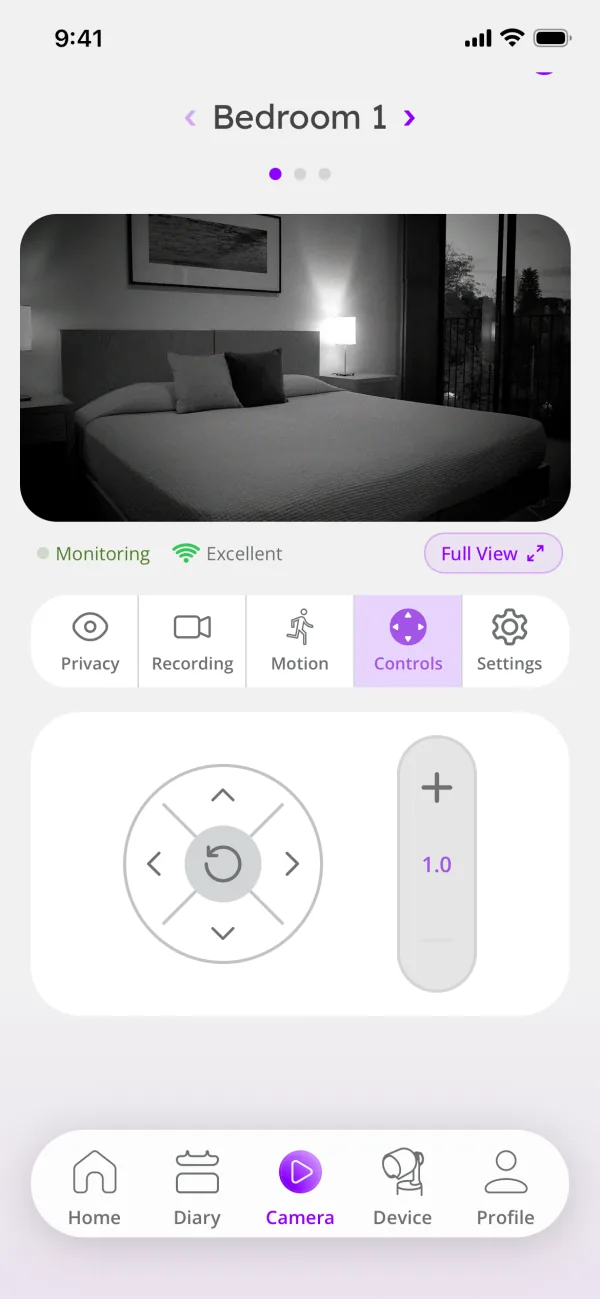
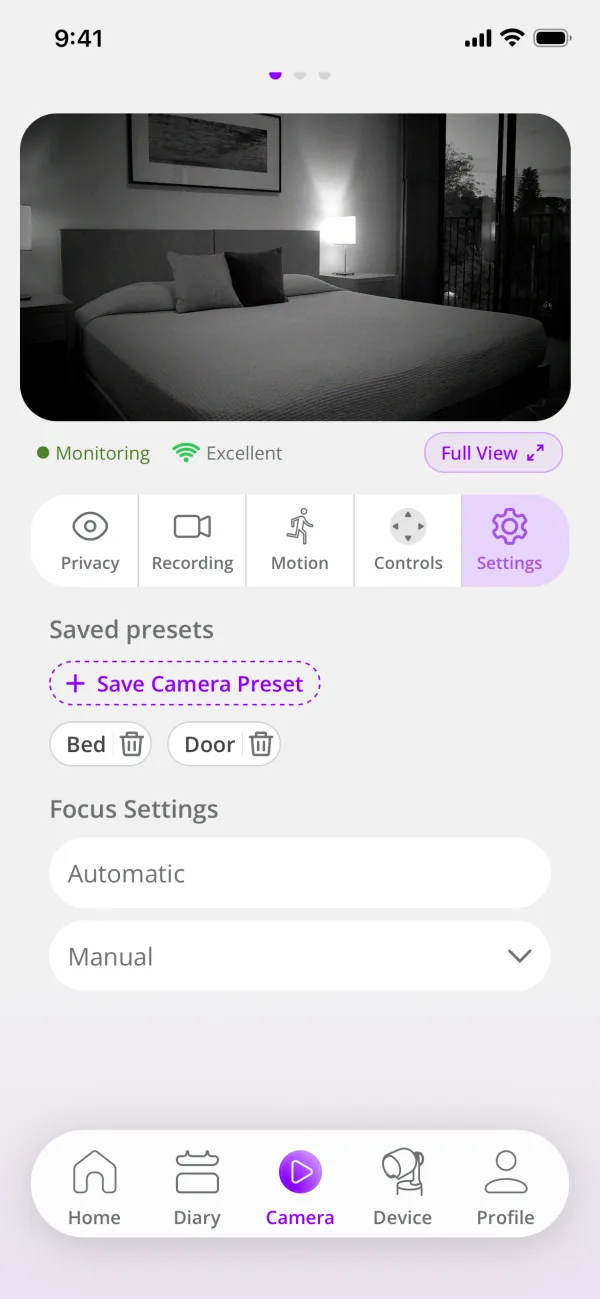
If you move Lampsy, check the view again and update your saved presets.
Lamp light
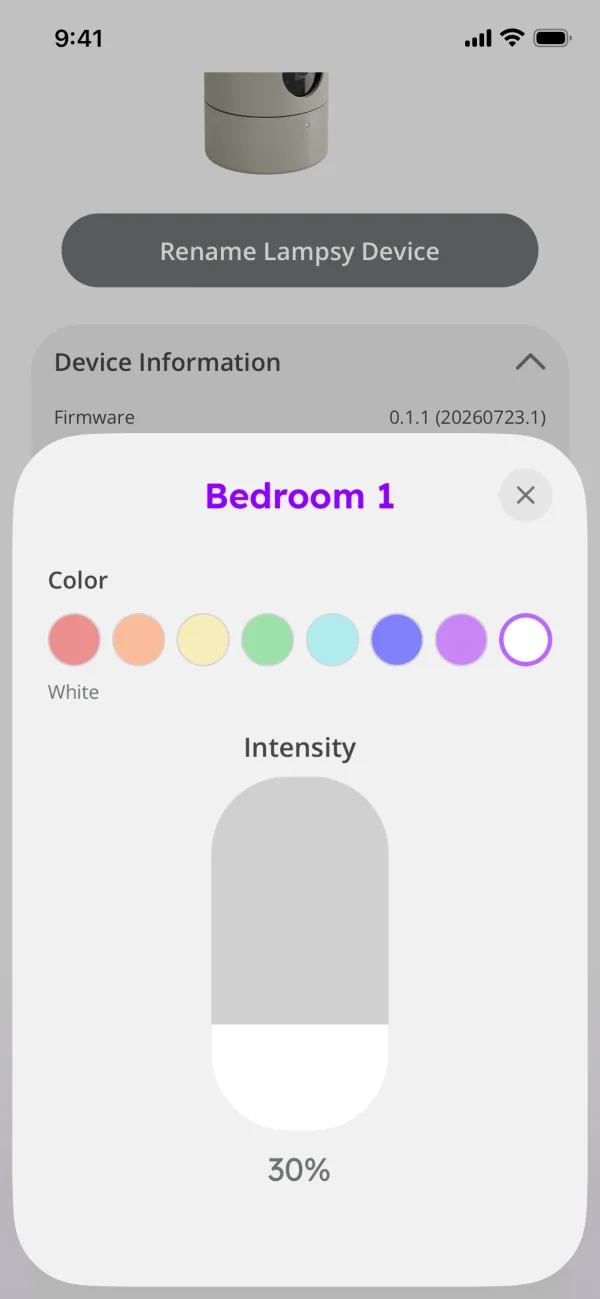
The lamp light is a non-medical feature: Lampsy does not need it to monitor.
- Briefly tap the setup button on top of Lampsy to switch the lamp light on or off.
- In the app, Lamp Light Settings switches the light on or off and sets its brightness and colour.
- Closing Lampsy turns the lamp light off. If the light was set to on, opening Lampsy turns it back on.
Status light and buttons
The small status light on the front of Lampsy shows what it is doing. It is separate from the lamp light.
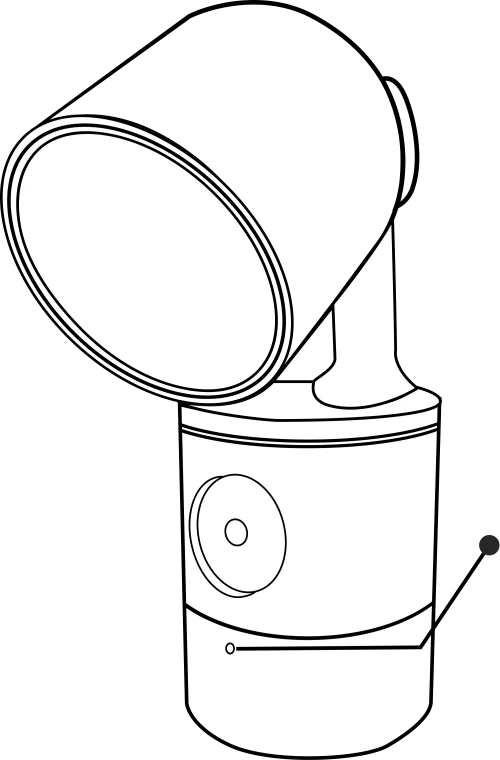
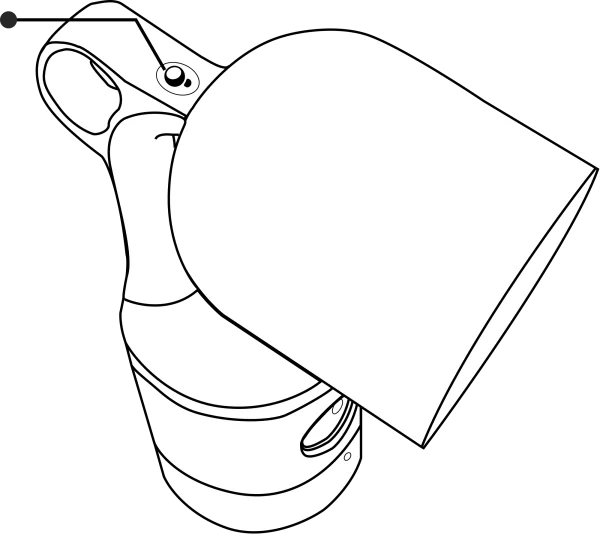
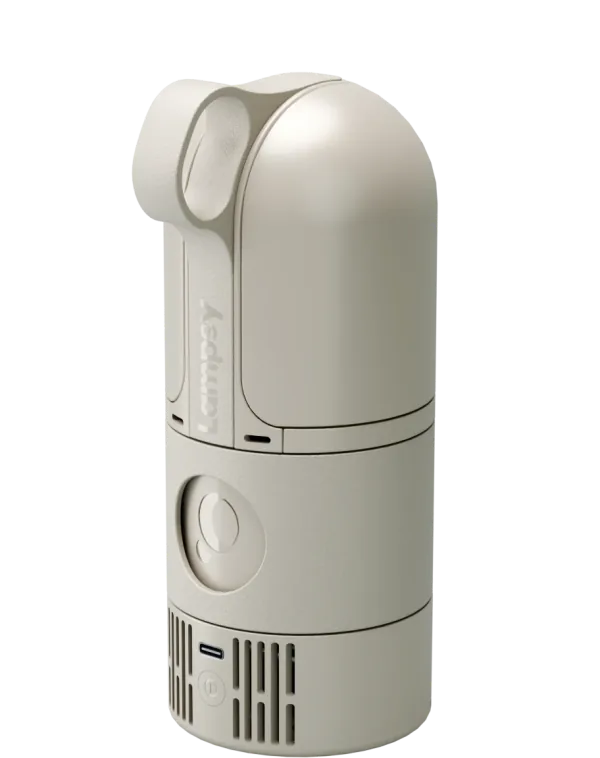
| Status light | Meaning |
|---|---|
| Changing red, green and blue, with steady white in between | Turning on. |
| Flashing blue | Waiting for a setup connection. |
| Steady blue | Phone connected for setup. |
| Blue gently brightening and dimming | Connecting to Wi-Fi. |
| Steady green | Connected to the Lampsy service. |
| Flashing green | Not connected to the Lampsy service. |
| Red flashes between other patterns | Lampsy has an error. Check the app’s notifications. |
| Steady red | Shutting down. |
| Repeating purple flashes | Startup failure. Contact support, with a video of the pattern if you can. |
Steady green confirms the connection to the Lampsy service, not the health of every feature.
| Button | Result |
|---|---|
| Setup button (on top), brief tap | Lamp light on or off. |
| Setup button, hold about 2 seconds | Enter or leave setup mode. |
| Setup button, hold about 5 seconds | Retry the saved Wi-Fi connection. |
| Power button (on the back), hold about 3 seconds | Shut down. Lampsy beeps once when pressed and twice when it starts shutting down. |
Shut down safely
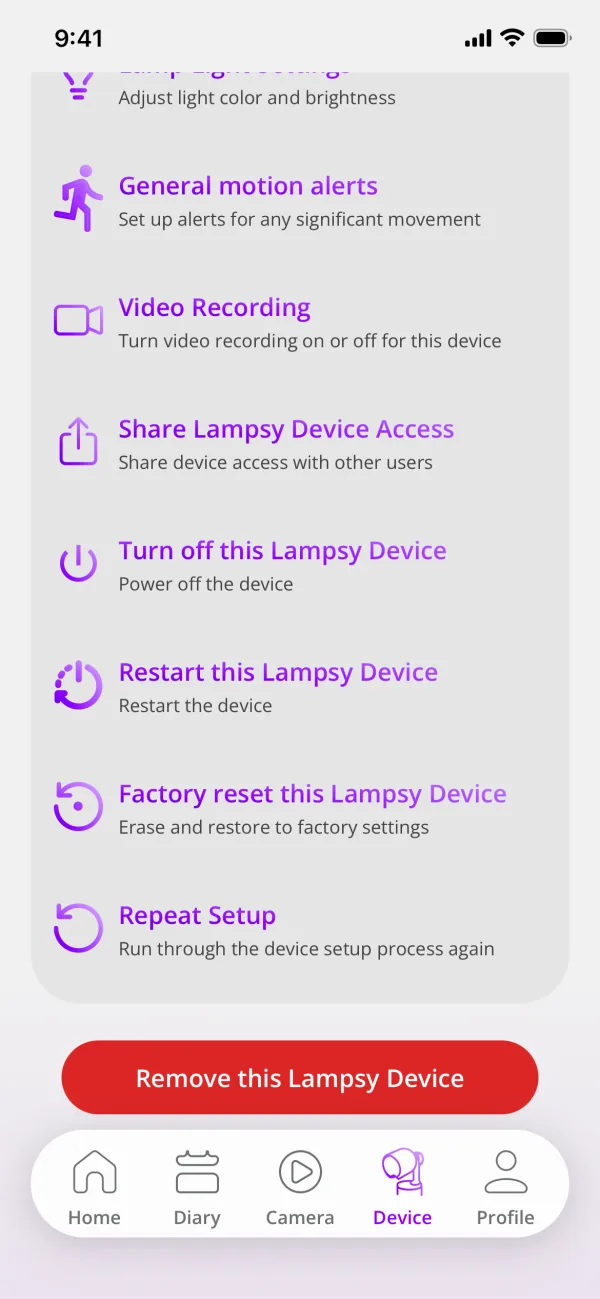
Hold the power button for about 3 seconds, or use Turn off this Lampsy Device in the Device tab. Wait until the status light is completely off before unplugging the power supply.
Account and updates
Account and security
Your account is protected by your email and password. In Profile > Privacy & Security you can add more protection:
- Two-Factor Authentication: a code from an authenticator app each time you sign in. There are no backup codes, so if you lose your authenticator, contact support.
- App Lock: Face ID, Touch ID or your phone’s passcode each time the app is opened.
- App PIN: a 4-digit PIN to log in, kept on this phone only. It is removed after 5 wrong attempts.
- Stream PIN and Diary PIN: 6-digit codes anyone must enter to watch your live video or open your diary, including the people you share with.
- Login Alerts and Active Sessions: be told about sign-ins from new devices, see where you are signed in, and sign out remotely.
Biometric Login, in Profile > Application Settings, adds a Face ID or fingerprint shortcut to the login screen.
Keep your account safe
- Never share your Lampsy login details, and never write them down.
- To let someone else receive alerts or watch the video, share access instead of your login (see Add Secondary Users).
- Don’t leave your phone unlocked with the Lampsy App open and out of your sight.
- Don’t connect your phone to unsecured networks while using the Lampsy App.
Forgotten password
- On the login screen, tap Forgot my password and enter your email address.
- Enter the verification code we send you by email.
- Choose a new password.
Lost or stolen phone or device
Sign the lost phone out from Active Sessions on another device, and contact us at support@lampsyhealth.com.
Sign in with Google or Apple
Instead of an email and password, you can sign in to Lampsy with your Google account, and on iPhone with your Apple account. Android phones show Google only. Your Lampsy security settings, including two-factor authentication, still apply.
Sign in
- On the login screen, tap Sign in with Google or Sign in with Apple, and confirm with Google or Apple.
- If your account has two-factor authentication on, enter the code from your authenticator app, as you would after a password.
If no Lampsy account uses that Google or Apple account yet, the app says so and offers Create an account. After you set up your Lampsy access, the Create account form is filled in with the name and email from Google or Apple: check them, accept the Terms and create the account. No password is needed.
On Create account you can also start with Google or Apple: choosing one fills in the form below with the name and email from that account. If you already have a Lampsy account, sign in to it instead, so your Lampsy and its alerts stay in one account.
If a Lampsy account already uses your email
The first time, Lampsy asks you to confirm that the account is yours, with its password or with Email me a code instead. After that, Google or Apple signs you straight in.
Hide My Email (Apple)
If you choose Hide My Email, Apple gives Lampsy a private address ending in @privaterelay.appleid.com and forwards our emails to you. As it isn’t your usual address, it can’t match an account you already have: to use that account, sign in to it with your password, then connect Apple in Sign-in methods.
Manage your sign-in methods
- Open Profile > Privacy & Security > Sign-in methods.
- Tap Connect to add Google or Apple, or Disconnect to remove one. At least one way to sign in must stay available.
Note: Sign in with Apple can only be connected from an iPhone. On the website, the same list is in your account settings.
Set a password as a backup
An account created with Google or Apple has no password. Set one in Profile > Privacy & Security > Set a Password, so you can also sign in with your email, for example on an Android phone with an account created with Apple. Biometric login also needs a password. You can set one from the login screen too, with Forgot my password: the code goes to your account’s email (Apple forwards it if you used Hide My Email).
If you lose access to your Google or Apple account
Sign in with your Lampsy password if you set one. If you didn’t, use Forgot my password on the login screen to set one, then sign in with your email.
Deleting your account
When your account is deleted, its connection to Google or Apple is deleted too, and we ask Apple to remove Lampsy’s access. If you sign in during the 30 days before the deletion, you can choose Keep my account.
Add Secondary Users
You can share each Lampsy with other people, such as family members or carers. They become secondary users with their own account, and you choose what each of them can do. How many people you can share with depends on your plan.
Invite someone
- Open Profile > Manage Access, tab Sharing, and tap + Share Device. If you have more than one Lampsy, choose which.
- Choose a preset (Viewer Only, Caregiver or Full Caregiver) or set each permission yourself, then tap Add Secondary User.
- Let them scan the QR code, or send them the Device Identifier and Device Key with Share Instructions. The invitation shows when it expires.
Accept an invitation
- Open the app, tap Get Started, then I don’t have an account and Join shared access. If you already have an account, go to Profile > Manage Access > My Access > Join Shared Access.
- Scan the code, or tap Can’t scan? Enter code and type the details you were sent.
- Create your account if you need one. The shared Lampsy then appears in your app; there is no device setup to do.
What secondary users can do
| Permission | What it allows |
|---|---|
| View Live Stream | Watch the live video. |
| Receive Notifications | Get notifications about the device’s events. |
| Receive Critical Alerts | Get high-priority alerts that break through Do Not Disturb. |
| View Emergency Contacts | See the list of emergency contacts. |
| Manage Emergency Contacts | Add, edit or remove emergency contacts. |
| View Diary | Read diary entries and notes. |
| Add Diary Notes | Add diary entries and notes. |
| View Events | See detected events and their history. |
| View Device Settings | See the device’s settings and status. |
| Manage Device Settings | Change the device’s settings, including the camera controls. |
| Manage Secondary Users | Add or remove other people with access to this device. |
Some actions stay with the main user: turning Lampsy off, restarting it, repeating setup, renaming it, a factory reset, its time zone and who it monitors.
Change or remove access
In Manage Access, tap Permissions on a person’s card to change what they can do, or Manage Users to remove them. A secondary user can leave a shared Lampsy from My Access. To hand a Lampsy over to someone else, use Transfer Main User in My Access.
Software updates
On iPhone and Android, the Lampsy App updates automatically when a new version is available. If it doesn’t, the app tells you, and tapping the notification opens the App Store or Google Play to update it.
If your version of the app is no longer supported, the live video of a Lampsy that has just raised an alert shows an Update required bar. Update the app once you have dealt with the alert: Update opens the App Store or Google Play.
When a new firmware version is available, the Lampsy Device updates itself and keeps working while the update installs. At the end, it may need to restart to apply the update; monitoring is interrupted while it restarts. The process should take no longer than 10 minutes. You are notified when the update starts and when it finishes.
Warning: Do not unplug Lampsy or reset it during an update. If you are told an update failed, contact support@lampsyhealth.com so monitoring can be restored.
Care, safety and support
Cleaning, storage and transport
Use and storage
Use and store the Lampsy device only in a clean, dry and well-ventilated place, away from heat, humidity and dust. Place it on a stable surface, 1 to 3 metres from the monitored area, with no obstructions to the camera. Use only authorised accessories. Do not use the device beyond its 3-year service life.
Cleaning
Before cleaning, disconnect the device from the power supply. Clean the exterior with a soft, dry cloth. Do not apply liquids directly to the device or use bleach, solvents or abrasive products.
Transport and storage conditions
Transport and store the Lampsy Device in its original packaging, in a dry place, not subject to mechanical impacts, away from heat sources, flames, direct sunlight, dust and liquids. Always make sure the packaging remains intact, and do not expose the product to weather such as rain or direct sunlight.
| Condition | Range |
|---|---|
| Temperature (transport, storage and operation) | 0 to 40 °C |
| Air humidity (transport, storage and operation) | Below 85% |
If the packaging or the product is damaged during transport, notify Lampsy Health and return the product.
Maintenance
Maintenance by the user
Maintenance by the user consists of:
- Cleaning the device.
- The initial set-up and checking that it works.
Warning: The Lampsy Device contains an internal coin cell battery. This battery is not user-replaceable. Do not attempt to open the device enclosure or access internal components. Coin cell battery replacement must be performed exclusively by Lampsy Health authorised service personnel. Attempting to replace the battery without authorisation may result in device damage, leakage, fire or personal injury.
Preventive and corrective maintenance
Any preventive or corrective maintenance of the Lampsy hardware, other than the user maintenance above, must be carried out exclusively by Lampsy Health technical support. For any repair or adjustment, send the device to Lampsy Health technical support with a short description of the failure.
Lampsy Health reserves the right to refuse equipment that has not been cleaned and disinfected by the user beforehand. Service by third parties not authorised by Lampsy Health releases the manufacturer from any responsibility for the operational safety of the Lampsy system.
The Lampsy Device contains an internal protection fuse, rated 6 V to 60 V and 0.1 A to 3.0 A, which the user cannot reach or replace.
For more information, contact support@lampsyhealth.com.
Service life and disposal
The service life of the Lampsy hardware is 3 years from the date of manufacture, provided it is correctly stored and used. Accessories should not be used for more than 3 years, and the device and its components must not be kept beyond 3 years when stored under the conditions in this guide.
The service life of the Lampsy App is 3 years. Keep your phone up to date and on a version of iOS or Android that is still supported.
At the end of its service life, dispose of the Lampsy hardware in accordance with local regulations for electrical and electronic equipment. Do not dispose of it in household waste.
Performance and quality
| Characteristic | Specification |
|---|---|
| False alarm rate | 0.07 false alarms per day |
| Accuracy | More than 97% |
| Latency | 42 seconds |
All products undergo the controls needed to establish their conformity. Products and raw materials are continuously controlled and monitored in light of regulatory requirements.
Support and incident reporting
If you need help or have difficulties using the Lampsy system, contact us at support@lampsyhealth.com, or use Report an Issue in Help & Support in the app’s Profile tab. The troubleshooting guide covers the most common problems step by step.
Warning: Any serious incident involving the device must be reported to the manufacturer and to the competent authority.
Warranty
Lampsy is covered by a 3-year warranty from the date of purchase. The warranty covers manufacturing defects and failures of materials or components.
The warranty is valid provided that the user:
- Does not open the Lampsy hardware to access its internal parts.
- Does not use Lampsy with any part, accessory or material not expressly specified in this guide.
- Does not modify the equipment without prior written authorisation from Lampsy Health.
- Carries out all preventive and corrective maintenance through Lampsy Health technical support.
Warning: Opening the device enclosure or reaching its internal components must be done only by Lampsy Health authorised service personnel. Tampering with the device without authorisation may result in device damage, leakage, fire or personal injury, and voids the warranty.
The warranty does not cover failures resulting from:
- Misuse or improper use of the product.
- Use of the product for purposes other than those in this guide.
- Not following the maintenance or cleaning instructions in this guide.
To use the warranty, send the device to the manufacturer in its original packaging.
Symbols used
These symbols appear on the Lampsy Device, its label and its packaging.
 CE marking: the product conforms to the applicable European Union legislation.
 Medical device
 Unique Device Identifier
 Catalogue number
 Serial number
 Manufacturer
 Date of manufacture
 Consult instructions for use
 Follow instructions for use
 Caution
 Class II equipment (double insulation)
 Direct current
 Non-ionizing electromagnetic radiation
 Do not dispose of in household waste
 Fragile, handle with care
 Keep dry
 Keep away from sunlight
Manufacturer
Lampsy Health, Rua da Prata 80, 1100-420 Lisboa, Portugal. lampsyhealth.com · support@lampsyhealth.com